SaaS / On-Prem Common Features
Accessing the HAS Console
To access the Hopex Application Server (HAS) console:
1. Navigate to your instance portal.
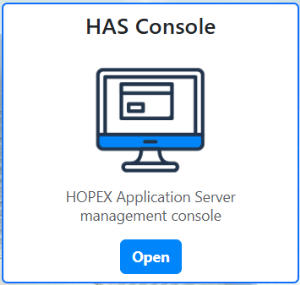
2. Hover the cursor over the HAS Console tile and click Open.
3. Log in using your credentials:
• Enter your Login and Password.
• If Single Sign-On (SSO) is enabled, click Single Sign-On instead.
4. Click Sign in.
Configuring the SMTP Server
SMTP (Simple Mail Transfer Protocol) server configuration enables email sending.
 If your server is hosted by Bizzdesign as part of the SaaS offering, the SMTP server configuration is managed by Bizzdesign Cloud Services (MCS).
SMTP Parameter | Description |
|---|---|
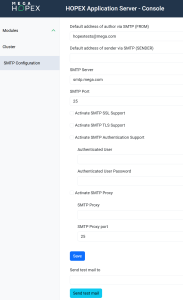
Single sender (generic sender) | To be selected to secure email reception. Can be asked upon request from the Bizzdesign support team. When selected, enter the same address in both Default address of author via SMTP (FROM) and Default address of sender via SMTP (SENDER) fields |
Default address of author via SMTP (FROM) | When an automated email (like a password setup email) needs to be sent, and the system cannot find a specific sender email address (such as the administrator's email), it uses this default email address instead. |
Default address of sender via SMTP (SENDER) | Used for security/authentication purposes, in addition to the known address or to the default address (Default address of author via SMTP (FROM)) depending on the case. Emails are sent as SENDER@domain.com on behalf of [User@domain.com]. Ensures deliverability and compliance with corporate policies. Can be used in Hopex Workflow notifications, see Managing E-mails and Notifications |
SMTP Server | The domain that handles outgoing emails. Must match the domain used in the FROM and SENDER addresses. |
SMTP Port and security | By default: 25 For secure communication use either: • (SSL): SMTP port: 465 and select Activate SMTP SSL Support • (TLS): SMTP port: 587 and select Activate SMTP TLS Support |
Activate SMTP Authentication Support (Optional) | Select if your SMTP server requires credentials and enter corresponding username and password |
Activate SMTP Proxy (Optional) | Select if a proxy is required and provide the proxy address and port |
To configure the SMTP server:
1. Access the HAS Console.

2. In the navigation menus, select SMTP Configuration.
3. Enter the SMTP parameters.
4. Click Save to apply the configuration.
5. (Optional) Check the configuration, see Testing the SMTP Settings.
Testing the SMTP Settings
To test the SMTP Settings:
1. Access the HAS Console.
2. In the navigation menus, select SMTP Configuration.
3. In the Send test mail to field enter a test email address.
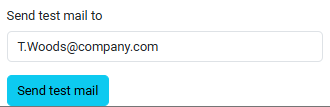
4. Click Send test mail.
Importing a Module into Hopex
Certain Hopex Solutions require additional modules to be imported before use.
To import a module:
