On-Premise Deployment Features
Accessing the HAS Console (On-Premise)
Prerequisite: Hopex Application Server is installed.
To access the Hopex Application Server (HAS) console:
1. Navigate to your instance portal.
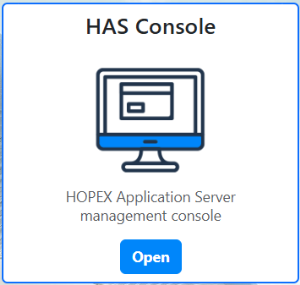
2. Hover over the HAS Console tile and click Open.
3. Log in using your credentials:
• Enter your Login and Password.
• If Single Sign-On (SSO) is enabled, click Single Sign-On instead.
4. Click Sign in.
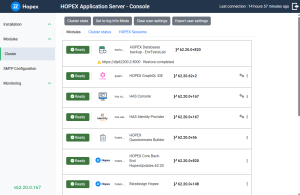
The HAS console opens and displays the Cluster menu.
Creating a User Account as an Administrator
As an Administrator, you can create a user account with full administrative access to the HAS console (role: Administrator).
To create a user account as an Administrator:
1. Access the HAS console as an Administrator.
2. In the navigation menus, select Modules > Authentication > User accounts.
3. Click Create.
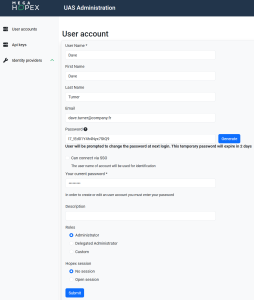
4. Enter the user's details:
• Login (mandatory): enter the login of the user
 The Login cannot be modified after creation.
• First Name, Last Name, and Email of the user are optional
• Password: enter a temporary password or click Generate.
The password expires in two days and must be shared with the user for first-time login. • Your current password: enter your own password.
• (Optional) Add a Description.
5. In Roles, select "Administrator"
6. In Hopex session for API, keep No session
7. Click Submit.
Configuring Authentication as an Administrator
As an Administrator, you can configure the following authentication:
• external authentication or Single Sign-On (SSO)
• SAML2
• OpenID Connect
• Hopex platform authentication
• Hopex
• Windows
For detailed documentation, see Hopex Unified Authentication Service.Importing a Module (On-Premise)
Certain Hopex Solutions require additional modules to be imported before use.
To import a module:

Creating an API Key
API keys not associated with a Hopex session must be created directly in the HAS Console.
API keys associated with a Hopex session must be created via HOPEX Administration, see Managing API Keys.To create an API key in the HAS console:
1. Access the HAS console:
2. In the navigation menus, select Modules > Authentication > Api keys.
3. Click Create.
4. Enter a key Name.
5. Configure the Roles:
• Administrator: Grants full access to perform all operations in the HAS Console with administrative rights.
• Custom: Grants limited permissions for certain operations in the HAS Console and/or Hopex Supervisor.
6. Click Submit.
7. Copy and save the key immediately.
The key will not be retrievable later.