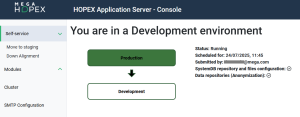
Move to Production & Down Alignment
Using a Move to Production approach ensures that the exact same module, already tested in Development and Staging environments, is deployed to Production. This guarantees consistency and reduces the risk of environment-specific bugs.
Using a Down Alignment approach ensures that lower environments reflect the state of Production.
• A manual Down Alignment (Production to Development) can be triggered on demand when developers need to mirror Production to debug, reproduce issues, or validate changes.
• An automatic Down Alignment (Production to Staging) is systematically performed before any Staging deployment. It ensures Staging is always a clean, up-to-date Production replica, enhancing confidence in pre-prod testing.
Prerequisites
Move to Production and Down Alignment features are available only if all the following conditions are met:
• Self-Services are configured in the Hopex Cloud Portal by Bizzdesign Cloud Services team.
• Your organization uses the Enterprise SaaS offer
 Not available with the Essential offer.
 • You are logged in as a Delegated Administrator.
Move to Production overview
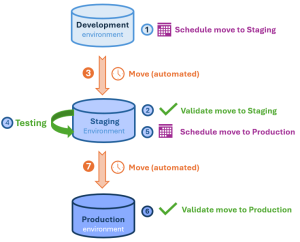
Move to Production process overview:
1. Development environment: schedule the move to Staging.
2. Staging environment: validate the move to Staging.
3. (Automated) Move to staging.
The process may take several hours.4. Staging environment: test your Staging environment.
5. Staging environment: schedule the move to Production.
6. Production environment: validate the move to Production.
7. (Automated) Move to Production.
The process may take several hours.Scheduling a Move to Staging
From the Development environment, you can schedule a Move to Staging.
The scheduled Move to Staging must then be validated from the Staging environment to be executed.To schedule a Move to Staging:
1. Access the HAS console of your Development environment.
2. In the navigation bar, select Self-service > Move to Staging.
In the diagram, Development is not colored: a Move to Staging is not planned.
 Status and characteristics of the previous scheduled Move to Staging are shown. For example here, the previous Move to Staging was canceled (Status: StagingCanceled).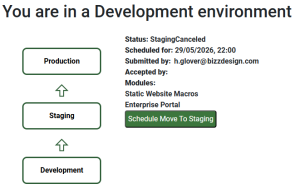
3. Click Schedule Move to Staging.
The calendar opens and shows any time slots already booked for other actions. These slots are unavailable.
 Hover over a booked slot for information on the action.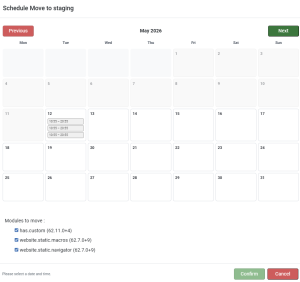
4. In the calendar, click the required date.
If needed, click  to view up to 12 months ahead and select a date.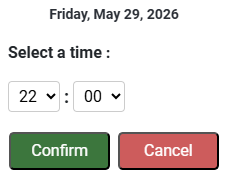
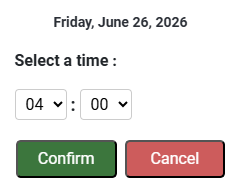
5. Use the drop-down menus (Hours:Minutes) to define the time.
(Default time: 09:00).
The time is defined in the platform local time.Time format: hh:mm where hh: 00-23 and mm: 00-55 (in 5-minute intervals).
6. Click Confirm.
The selected day and time are booked.
E.g.: Friday, May 29 at 22:00.
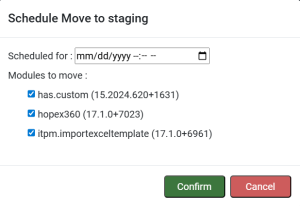
7. (If needed) Clear the module(s) you do not want to deploy yet.
By default all the modules are selected.
8. Click Confirm.
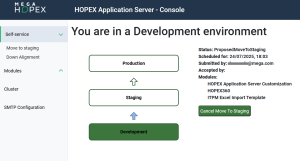
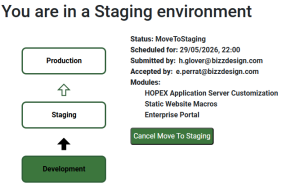
In the diagram, Development turns green, and its arrow towards Staging turns blue (proposal waiting for confirmation).
The arrow turns black (proposal validated) once the Move to Staging is validated from the Staging environment.The Move to Staging is scheduled and its characteristics are detailed:
• Status: ProposedMoveToStaging
• Scheduled for: scheduled date and time
• Submitted by: submitter
• Accepted by: <empty, waiting for approval>
Filled once the proposal is validated from the Staging environment.• Modules: list of modules concerned
The Move to Staging is scheduled and now requires validation in the Staging environment.
Validating a Move to Staging
From the Staging environment, you must validate the scheduled Move to Staging proposal for the move process to be performed.
If needed you can:
• modify the proposal (e.g.: non suitable date)
• cancel the proposal (e.g.: non suitable module list)
To validate a Move to Staging:
1. Access the HAS console of your Staging environment.
2. In the navigation bar, select Self-service > Move to Production.
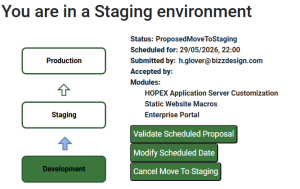
3. Click Validate Scheduled Proposal.
The Move to Staging is validated.
The Move to Staging process can take several hours to complete as an automatic Down Alignment process is first performed to synchronize the Staging environment with the Production environment current state.
Scheduling a Move to Production
From the Staging environment, you can schedule a Move to Production.
The scheduled Move to Production must then be validated from the Production environment to be executed.After a Move to Staging, make sure to test the Staging environment before scheduling a Move to Production.To schedule a Move to Production:
1. Access the HAS console of your Staging environment.
2. In the navigation bar, select Self-service > Move to Production.
3. Click Validate & Schedule Move to Production.
The calendar opens and shows any time slots already booked for other actions. These slots are unavailable.
Hover over a booked slot for information on the action.4. In the calendar, click the required date.
If needed, click to view up to 12 months ahead and select a date.5. Use the drop-down menus (Hours:Minutes) to define the time.
(Default time: 09:00).
The time is defined in the platform local time.Time format: hh:mm where hh: 00-23 and mm: 00-55 (in 5-minute intervals).
6. Click Confirm.
The selected day and time are booked.
7. Click Validate & Schedule.
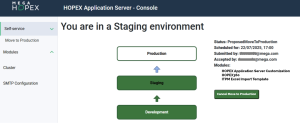
In the diagram, the arrow towards Production turns blue (proposal waiting for confirmation).
The arrow turns black (proposal validated) once the Move to Production is validated from the Production environment.The Move to Production is scheduled and its characteristics are detailed:
• Status: ProposedMoveToProduction
• Scheduled for: scheduled date and time
• Submitted by: submitter
• Accepted by: <your identifier>
• Modules: list of modules concerned
The Move to Production is scheduled and now requires validation in the Production environment.
Validating a Move to Production
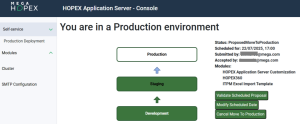
From the Production environment, you must validate the scheduled Move to Production for the move process to be performed.
If needed you can:
• modify the proposal (e.g.: non suitable date)
• cancel the proposal
To validate a Move to Production:
1. Access the HAS console of your Production environment.
2. In the navigation bar, select Self-service > Production Deployment.
3. Click Validate Scheduled Proposal.
The Move to Production process can take several hours to complete.
Scheduling a Down Alignment
You can schedule a Down Alignment to synchronize the Development environment with the current state of Production.
If needed you can cancel the scheduled down alignment.
To schedule a Down Alignment:
1. Access the HAS console of your Development environment.
2. In the navigation bar, select Self-service > Down Alignment.
3. Click Schedule Down Align.
The calendar opens and shows any time slots already booked for other actions. These slots are unavailable.
Hover over a booked slot for information on the action.4. In the calendar, click the required date.
If needed, click to view up to 12 months ahead and select a date.5. Use the drop-down menus (Hours:Minutes) to define the time.
(Default time: 09:00).
The time is defined in the platform local time.Time format: hh:mm where hh: 00-23 and mm: 00-55 (in 5-minute intervals).
6. Click Confirm.
The selected day and time are booked.
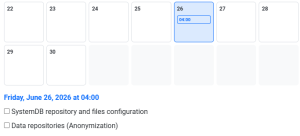
7. Select what you want to synchronize from Production to Development:
• SystemDB repository and files configuration: this refers to the configurations of the modules.
• Data repositories (Anonymization): data from your repositories is anonymized
8. Click Confirm.
The Down Alignment process is scheduled and its characteristics are detailed:
• Status: Scheduled
• Scheduled for: scheduled date and time
• Submitted by: submitter
• detail of synchronization