Defining a Business Continuity Plan
A Business Continuity Plan must necessarily be created from a Business Impact Analysis.
 You can define several BCPs for one BIA.
You can either create a BCP or duplicate an existing BCP.
Creating a Business Continuity Plan
To create a Business Continuity Plan:
2. In the properties of a BIA, select the Continuity Plans page.
3. Click New.
4. Select Create a Business Continuity Plan.
5. Enter a name and click OK.
Duplicate a Business Continuity Plan
To duplicate a Business Continuity Plan:
2. In the properties of a BIA, select the Continuity Plans page.
3. Click New.
4. Click Duplicate a Business Continuity Plan.
5. Select an Existing Business Continuity Plan.
If the existing BCP has a degraded mode/recovery procedure, a duplication strategy in suggested.
If the BCP to be duplicated has neither degraded mode nor recovery procedure, no duplication strategy is suggested.6. In the Duplication Strategy section, select:
• (optional)Reuse the degraded mode.
Here we refer to degraded mode reuse, and not duplication, because the process corresponding to the degraded mode is not duplicated.• (optional)Duplicate the recovery procedure.
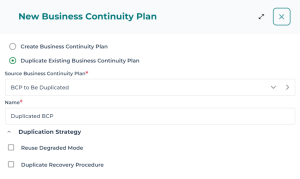
7. Enter a Name for the new BCP.
8. Click OK.
The BCP is duplicated.
The degraded mode process is reused. You can modify the substitute assets of the duplicated BCP without impacting the degraded mode of the source BCP.Specifying the Business Continuity Plan Characteristics
BCP general characteristics
The following characteristics are displayed in the BCP properties:
• BIA connected
• Status
• Ongoing
• Archived
• Entity: entity of the BCM System the Business Continuity Plan applies to.
• Process: the process of the Business Continuity Plan scope
• Validity dates (Valid From and Valid Until)
Additional sections enable to define:
• a Risk Scenario as well as the risks that might trigger the BCP.
 A risk scenario corresponds to a risk type.
• Unavailable resources in the event of a crisis.
BCP Responsibilities
The (RACI) responsibilities of the BCP are by default the same as those of the process category/process analyzed within the framework of the BIA.
The RACI responsibilities are defined in the Responsibilities section of the BCP properties.Specifying the risks of a BCP
In the Business Continuity Plan properties you may describe a risk scenario and/or specify the triggering risks.
To specify risks and risk types:
2. In the properties of a BCP, expand the Risk scenario section.
3. In the Risk Scenario list, connect one or more risk types (which make up the risk scenario).
4. In the Triggering Risks list, connect one or more risks that might trigger the BCP.
When connecting risks you may choose among:
• all risks
• risks connected to the process
• risks connected to the risk scenario (risk type)
• risks connected to both process and risk scenario
This information enables to describe the origin of the crisis which triggers the BCP.Specifying unavailable assets
In the properties of a Business Continuity Plan you can specify the assets that become unavailable in the event of a crisis:
• Org-Units
• Applications
• Sites
This information enables to explain why a BCP is necessary to ensure business continuity.Defining Continuity Steps
Continuity steps are steps that ensure the process continuity.
They are used to start the degraded mode.

To create a continuity step:
2. In the properties of a Business Continuity Plan, select the Continuity Steps page.
3. Click New.
4. Define a Responsible user.
5. Enter a Description.
Defining a Degraded Mode
A degraded mode enables to ensure business continuity in the event of a crisis.
To initialize a degraded mode, you must have defined continuity steps first. See Defining Continuity Steps.To defining a degraded mode:
1. In the BCP properties, select the Degraded mode page.
2. Click Initialize a degraded mode.
A degraded mode is automatically created.
Its name is automatically generated from the BCP name.
3. (Optional) Specify the Degraded mode process if you want to give more information.
The process can be described in Hopex Business Process Analysis.4. Specify the Substitute Assets.
• Org-Units
• Applications
• Sites
The substitute assets are supposed to replace the unavailable assets specified in the BCP (see Specifying unavailable assets).Defining the Recovery Procedure
Once the business continuity is granted by the degraded mode, you should describe the recovery procedure to go back to business as usual.
A recovery procedure consists of recovery steps necessary to go back to business as usual. The recovery procedure gives birth to an action plan when a crisis is triggered.
The recovery procedure can be considered as an action plan template.To trigger a recovery procedure:
1. In the Business Continuity Plan properties, select the Recovery Procedure page.
2. Click Initialize Recovery Procedure.
A recovery procedure is automatically created.
Its name is automatically generated from the BCP name.
3. Specify:
• the Owner and the Approver of the recovery procedure.
These fileds are similar to the ones found on an action plan.• the estimated Necessary Time.
4. Fill in the Means as well as a Description.
5. Specify the Recovery Steps as well as their sequence.
For each step you may specify:• the estimated required time
• the previous step
• the deliverable
• a description
