Managing Time and Expenses
Managing Expenses
Auditors assigned to an audit can create expense sheets and charge them to this audit. In this case, they must submit their expense sheet to the lead auditor via a workflow.
 The lead auditor and the GRC functional administrator can create expense sheets.
To create an expense sheet:
1. Click Times & Expenses > Expenses.
2. Click New.
3. In the Expense Owner field, select the audit/test concerned.
You can also create an expense sheet in the Expenses page of the audit/test properties. In this case, you do not need to specify the expense owner.4. Click OK.
An expense sheet is created. You can now create associated expenses.
5. In the expense sheet properties, expand the Expenses section and click New.
The audit/test is indicated.
6. Enter an Amount and a Date: you can enter the amount in the currency you require (from those you can access).
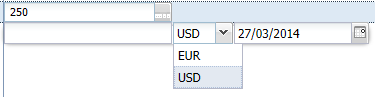 The amount is converted to the currency configured for your user.
7. Specify if required:
• the Expense Category: "Lodging", "Food and Beverages", "Transportation"
• a Comment.
8. Click the icon of the expense sheet and submit it via the workflow.
The lead auditor does not need to seek approval for his/her expense sheets. You can export to Excel the data contained in expense sheets.Entering Vacations
Entering vacations enables to:
• better schedule audit campaigns.
• pre-filling time sheets.
To enter a vacation:
1. Click Times & Expenses > Vacation Requests.
2. Click New.
3. In the properties of a vacation, select the associated Plan.
4. Also specify:
• Vacation Type (holiday, training, other)
• planned and effective begin and end dates
The vacation start date should be within the plan. The vacation end date can exceed the end date of the selected plan. In this case, vacation dates later than plan end date are taken into account for any subsequent plan.• a comment if required
• In the Status field, select "Submitted".
So that the vacation will appear in the time sheet, the lead controller must have validated the vacation (by positioning its status value on "Validated").An auditor can modify or delete a vacation as long as the vacation has not been validated.Completing a Time Sheet
Auditors can complete time sheets in the framework of their audit.
To complete a time sheet:
1. Click Times & Expenses > Time Sheets.
The time sheet displays one line per audit.
2. Enter for each day the number of hours spent on each audit.
3. Click Submit to save your time sheet.
4. Click Next to enter your hours concerning the next week.
Messages may appear if the activity report is not consistent. For example, if hours have been allocated to an audit/test and the audit/test has not yet started. You can however submit an incomplete time sheet.The time sheet enables entry for each day and for each week the number of hours spent on each audit/test.
Only those audits/tests that have been published are visible in the time sheet.The time sheet also shows:
• vacations that have been validated
• general tasks (meetings, training, team management, administration ...)