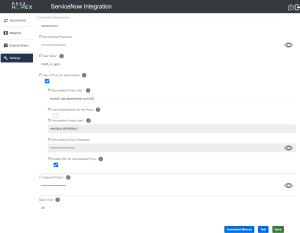
Setting Up the Hopex-ServiceNow Connection
To set up the connection between Hopex and ServiceNow:
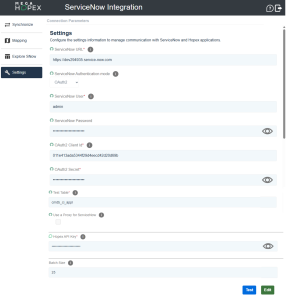
1. In the menu, select Settings.
2. Click Edit.
3. Enter the ServiceNow URL: The URL of your ServiceNow instance.
4. Select the ServiceNow Authentication mode:
• Basic: Can be used for quick set up in non-production environments.
• OAuth2: Recommended for production environments due to its enhanced security and token-based access.
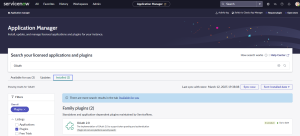
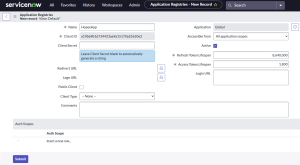
 Further configuration is required in your ServiceNow instance to retrieve the OAuth2 Client ID and the OAuth2 Client Secret. See Setting Up OAuth2.0 in ServiceNow.
5. Enter the ServiceNow User and the ServiceNow Password.
The user must have access to REST APIs and the objects to synchronize.6. (Optional) Modify the default Test Table.
This table is used to test the connection and the rights of the user.
7. (Optional) Tick the box to set up a Proxy for ServiceNow.
See Setting Up a Proxy.8. Enter an API key.
 The Hopex login used to create the API key must be different than the Hopex login used to access ServiceNow Integration.
9. (Optional) Modify the default Batch Size.
This represents the quantity of objects synchronized in each call to the web service.
The higher the value, the higher the performance. Bear in mind that this may generate errors if the value is higher than the number of objects in each call. 10. Click Test to check whether the connection between ServiceNow and Hopex is successful.
11. Click Save.
Setting Up OAuth2.0 in ServiceNow
Setting Up a Proxy