Creating a Web Site Template
In a Web site template, you indicate the type(s) of object to be described in the site as well as the pages generated. This avoids you having to specify these at each new creation of a Web site.
To create a Web site template:
1. In HOPEX Windows Front-End workspace, select the Utilities window (accessed by selecting View > Navigation Windows > Utilities).
2. Right-click the Web Site Template folder and select New > Web site template.
3. In the Create Web Site Template dialog box, indicate its Name and click OK
 You can base a Web site template on another Web site template. To do this, you must duplicate the existing Web site template. See Duplicating a Web Site Template.
The Web site template is placed on the desktop, and in its properties dialog box you must define the described objects and pages as we did for a Web site.
Adding Pages
To add pages:
1. In the properties dialog box of the Web site template, select the Pages tab.
2. Add a page and/or index page for all the object types that will form a page, as described in the corresponding paragraph for Web site pages Adding Pages.
Selecting Objects
To select objects:
1. In the properties dialog box of the Web site template, select the Objects tab.
2. Add a query that will produce a list of objects appearing on the Web site.
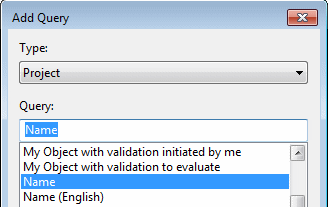
The Add Query dialog box appears.
3. Select the object type and the query, for example the "Project" object type and the "Name" query.
4. Click OK.
When parameters must be resolved, the Query Parameters dialog box appears.
Under the Value field, you can indicate:
• The name of the parameter of which the value will be requested when creating the Web site, for example "Project Name".
Several parameters can be created.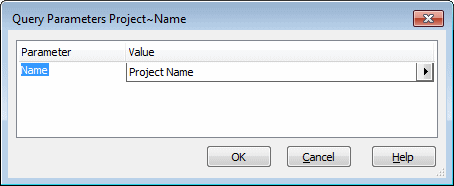
• The name of the object to which the Web site relates. In this case, the selected object is taken into account directly as parameter value when creating the Web site. To select an object, you must clear the Setting check box, click in the Value field and find the object in question.
You have a choice between parameters and objects and cannot mix the two.5. Click OK.
You can now create a Web site from this Web site template.
The Web site template can be configured in the same way as a Web site.