How to Group Arcs in a Graph
You can group arcs (or path) of the same type or arcs carrying the same field value or the same object value.
The Grouping on values are:
• (by default) "All arcs"
Groups together all of the arcs matching the GraphSet Arc Definition between two node instances.
• "By field"
Groups together all of the arcs carrying the same field value. The grouping field must be displayed either on the graph or in a tooltip.
 If the field is a multivalued attribute, its picture is shown in the tooltip.Restricted to one object type.
• (path-based arc only) "By object"
Groups together all of the arcs carrying the same objects.
To group arcs of the same type:
1. Access the Report Graph Arc  properties.
properties.Access the Report Graph View  and expand its Report Graph Layer
  concerned, see Accessing the Report Templates and their Constituents.
2. In the Properties window  , display its Characteristics page.
, display its Characteristics page.3. In the Grouping specifications section, in the Grouping on field, use the drop-down list to select the grouping criteria.
4. If you selected a grouping:
• By field: in the Object or Field field, use the drop-down list to select one of the available fields of the nodes.
• By object: in the Object or Field field, use the drop-down list to select the object.
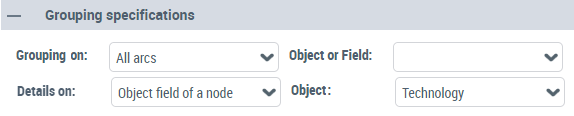 You can set a display on details of your arc grouping
Setting a display on details of an arc grouping
From an arc grouping tooltip, you can display its detailed list of objects, either:
• (path-based arc only) the list of objects of one of its intermediate nodes (Nodes), or
• the list of the objects represented by one of the fields of the arc (Object field of a node)
Note: in a path, you can only add fields on its intermediate nodes (not its intermediate arcs).When the end-user clicks Click to see details  (displayed in the arc grouping tooltip), the list of objects is displayed in the Search and Result window.
(displayed in the arc grouping tooltip), the list of objects is displayed in the Search and Result window.To set a display on details on an arc grouping:
1. Access the Report Graph Arc properties. The arc is a path.
properties. The arc is a path.Access the Report Graph View and expand its Report Graph Layer concerned, see Accessing the Report Templates and their Constituents.2. In the Properties window , display its Characteristics page.
, display its Characteristics page.3. In the Grouping specifications section, in the Details on field, use the drop-down list to specify the object you want to display.
4. In the Object field, use the drop-down list to select the object.