Using HOPEX for the ArchiMate Framework Folders
HOPEX for the ArchiMate Framework supports the ArchiMate® standard organization in folders.
From the Models navigation pane, you can use generic folders or specialized folders.
HOPEX for the ArchiMate Framework generic folders
Generic folders can contain any kind of item: views, elements and folders.
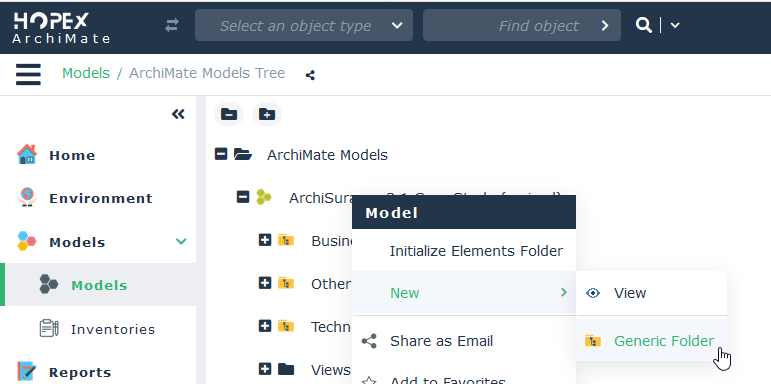
To create a generic folder from the Models navigation pane:
1. Click Models navigation menu.
2. Right-click your ArchiMate® Model and select New > Generic Folder.
The new generic folder appears.
HOPEX for the ArchiMate Framework Specialized folders
Specialized folders are provided, on views or elements, to enable narrow sorting of items.
When creating a new ArchiMate® Model, elements folders by layers are also automatically created (for example: Motivation, Business, Application or Technology.
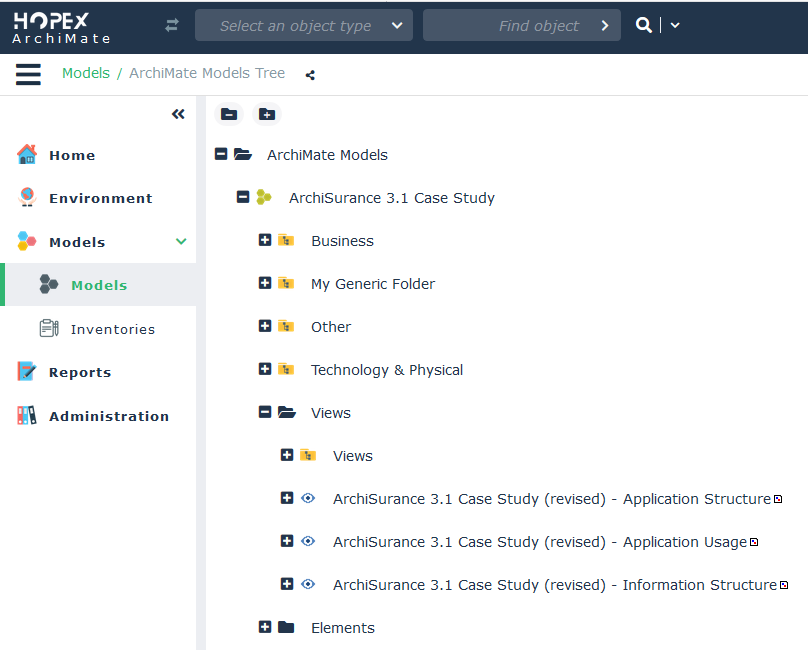
 New elements created in views diagrams are automatically sorted into the appropriate element folder.
Classification of objects into folders
For existing models, you can automatically classify the elements into appropriate folders.
To classify elements into folders from the Models navigation pane:
1. Click Models navigation menu.
2. Right-click your ArchiMate® Model and select Classify Elements into Folders.
You can use this command when a model is imported to auto-sort the elements into appropriate folders. For more details, see ArchiMate Model import - Export.Duplicating elements using folders
From the Models navigation pane, you can duplicate an existing element from an ArchiMate® Model to another using folder.
To duplicate an Application Component, for example:
1. In the navigation pane Models, expand the origin ArchiMate® Model folder.
2. Expand the Elements >Application > Application Component folder.
3. Click the Application Component that interests you, drag and drop the element you want to duplicate into the Elements >Applicatio folder of the destination ArchiMate® Model.
The duplicated Application Component appears in the navigation tree of the destination ArchiMate® Model.
The shared inventory object is reused but a new EA Element is created.