Creating a Solution Master Plan
Solution Master Plans are created in the navigation tree. The details of these Master Plans are then displayed as a graphical representation in a Gantt Chart.
To create a Solution Master Plan in the NAF navigation tree:
1. In the NAF navigation window expand the System Views and NSV-8 Systems Configuration Management folders.
2. Right-click the All System Master Plans folder and select New > Master Plan.
3. Enter the name of your Master Plan.
4. Select the planning mode of your Master Plan. By default the Master plan is date-oriented.
5. Click OK.
The new Master Plan appears in the tree under the All System Master Plans folder.
A Planned Item Periods folder is automatically created with the Master Plan. Three basic milestones are created with the "milestone-oriented" Master Plans:
• As-Is,
• To-Be,
• Distant Future.
Displaying the Gantt Chart
The Gantt chart is automatically created with the master plan.
To view the Gantt chart of a master plan:
1. From the NAF navigation tree expland System Views > NSV-8 > All master plans.
2. Right-click the newly created master plan and select Open Gantt Chart.
The Master Plan is initialized with the milestones that were created. Milestone arrangement is from left to right.
You can create and modify elements directly in the Gantt Chart.
To complete the Master plan, you can:
• Create milestones
• Create planned configuration capabilities
• Add the time periods of objects to be planned.
• Indicate the life-cycle status of the planned objects.
Creating milestones in a Gantt Chart
A milestone marks the date on which the results of a task are expected. Each milestone therefore corresponds to the beginning or end of availability of a resource architecture/system. Milestone arrangement is from left to right.
To create a milestone and add it to a Master plan from the Gantt Chart:
1. Click the Milestone button at the top of the Gantt Chart.

2. In the dialog box that appears, enter the name of the milestone.
3. Indicate the type of milestone to be created. In the case of a standard milestone, select the preceding milestone.
4. Click OK.
The Milestone is created and appears in the Master Plan. This Milestone is also displayed in the Properties dialog box of the Master Plan, in the Characteristics tab.
 Milestones belong to a particular master plan and cannot be reused in others.
If you made an error and wish to delete the milestone, click the cross on the milestone.
You can change the name and dates of a milestone in its Properties dialog box, Characteristics tab. Do not forget to refresh the Gantt chart to display the modifications.Adding objects to a master plan and planning object life
The Gantt chart of a master plan relates to certain object types.
Adding an object to a master plan means integrating planning of the different object life cycle steps in the Gantt chart of the master plan. You can therefore plan all the steps in the life of the object.
To add objects:
1. Above the master plan table, click the Add Object button.
2. In the Query dialog box that appears, use the Find button to find the required object, in this case a resource architecture.
3. In the list proposed, select your object and click OK.
The dialog box for adding planned objects opens with the chosen object.
4. Click Next to continue.
You are then required to select the life cycle of the object.
5. In the Life Cycle to Follow, select a life cycle, for example "Application development life cycle".
6. Specify the Begin Date and the End Date.
7. Click OK.
Application life planning appears in the master plan.
You can define absolute start and/or end dates on the time period.
When completed, the Gantt Chart displays the milestones and planned objects.
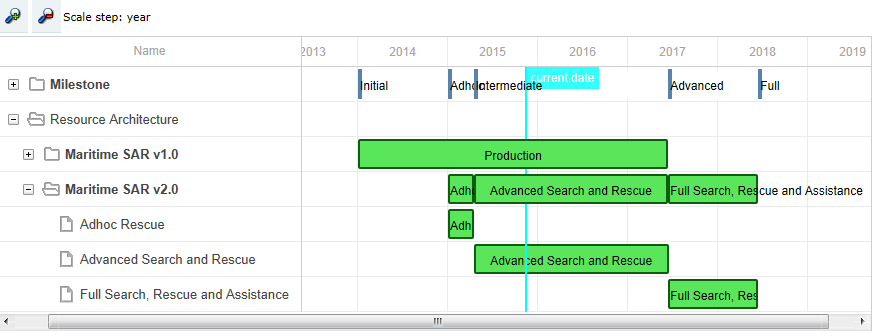
Example of an NSV-8 Gantt Chart