Creating Reports
When creating reports, you have the option of doing so:
• for each subview of the NAF architecture, one by one, or
• for all the subviews of the architecture at one go.
Create a report
To create a report:
1. From the Architectures navigation tree, expand the architecture concerned, as well as the Views folder containing the subview for which the report is required.
2. Expand the subview folder.
3. Right-click the Reports folder and select New > Report.
 The prefix for the name of the report depends on the subview associated. For example, you will select New > NAV-1 Report to create a report for the NAV-1 subview.
4. In the dialog box that appears, enter the name of the report.
A name is automatically proposed and the template on which the report is to be based is automatically selected.5. Click Next.
6. If you wish to create subsets of the report, do so in the window that appears and click Next.
7. Verify that the type of report you wish to generate is selected and click Finish.
Normally if you do not wish to add subsets to report parameters, click Finish in the dialog box in which you enter the name of the report.Your report is created and appears in the NAF navigation window under the folder of the corresponding subview.
8. Double-click the name of the report in the tree to open the report and view its contents.
Creating reports for complete subview sets of an architecture
To create all the reports for all the subviews of a particular View of the architecture:
1. In the Architectures navigation window, right-click the architecture concerned.
2. In the pop-up menu that appears, select Complete Reports Set and select the report creation option which corresponds to the View concerned, for example, "Create All Views Reports".
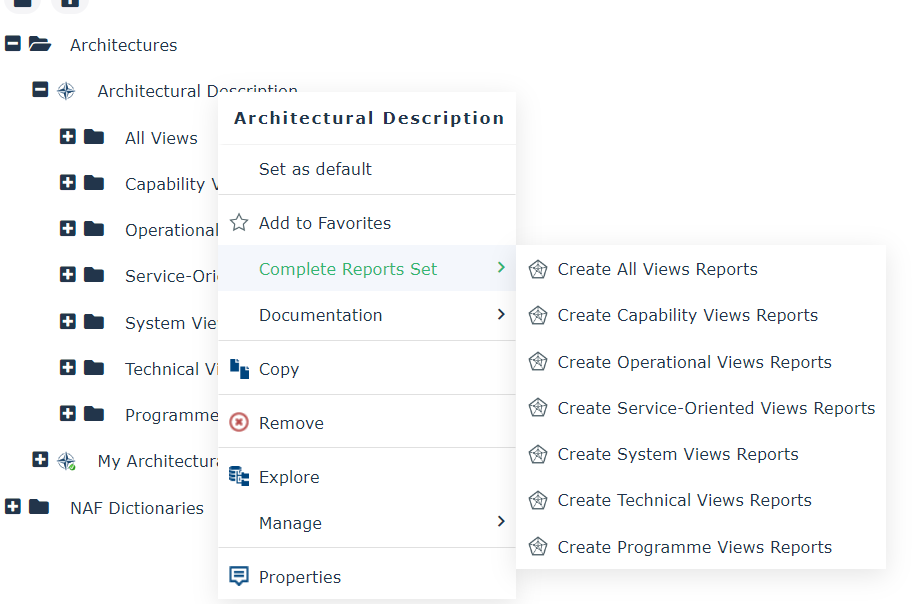
All the reports for the All Views subviews are created and appear in the tree under the All Views folder.
MS Word Reports
To keep track of the status of reports, a report can be converted into an RTF or PDF Document (called MS Word Report). This MS Word report is simply a format conversion of reports. Versions of the MS Word report can be created so that evolutions of the architecture design are stored.
Converting Reports into MS Word Reports
To convert a report into an MS Word report:
1. In the Architectures navigation window, right-click the report to be converted and select Open as > RTF.
The new MS Word report is generated and opens.
2. Name and save the MS Word report in the desired location.
This MS Word report is disconnected from HOPEX.
Managing Versions of MS Reports
Converting reports into MS Word reports is useful if you wish to distribute generated documents (for example, diagrams and their descriptions) to persons without access to HOPEX or if you simply want to keep different versions of the same MS Word report.
The generated RTF MS Word report reflects the state of objects at a given moment and can no longer be modified in HOPEX as all links with HOPEX are removed. To have your MS Word report reflect modifications of the report, simply convert the report again and save the new MS Word report.
Of course you have the option of saving each MS Word report as a new version to allow you to retrieve information relating to objects at a particular point in time.
The generated MS Word reports and their different versions can be added to HOPEX as business documents allowing you to easily access them from the HOPEX desktop.