Using State Machines
Two methods exist for creating state machines:
• from an activity
• from the navigation tree.
Setting the state machine as operational
For a state machine to be set in the operational range, it must meet one of the following constraints:
• be connected to an activity
• be explicitly marked as operational using the Architecture View Type property.
 If the property is set using the Operational Architecture View or the All Views value, the state machine is considered an operational one. Therefore, when the user creates a new state machine in the navigation tree, the property is set to Operational Architecture Views and states described in the state machine must relate to an operational state machine.
Other operational state machines can be created directly from an activity. In order to retrieve all the state machines, a sub-folder is added to the NOV-6b folder. New state machines can be created from this location.
To create an operational architecture state machine:
1. In the NAF navigation tree, expand the NOV-6b - Operational State transition Description folder.
2. Right-click Operational State Machines and select New > State Machine.
3. In the dialog box that appears, enter the name of the state machine and click OK.
The new state machine is displayed.
To change the property of the behavior:
1. Open the property page of the state machine
2. From the drop-down list select the NAF > NAF State Level page.
3. Select a view type from the NAF Architecture View Type field.
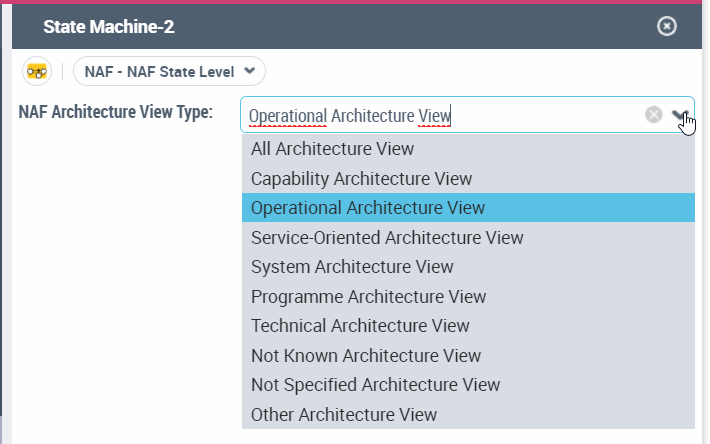 If you select "All Architecture View", the behavior also appears in the NSV-10b folder. See The NSV-10b Resources State Transition Description Chapter.
Creating a state diagram
Once a state machine has been created it can be described using state diagrams.
 A state diagram describes the evolution over time of an object of a certain class, and shows its behavior in response to interactions with other objects (internal or external to the studied system) in its environment.
The figure below is an illustration of a state diagram. Each arrow corresponds to a state and each graphical circle corresponds to the transition.
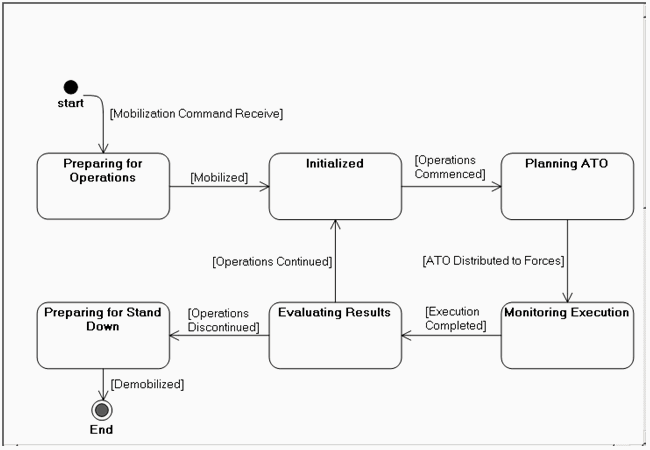
Example of a State Diagram (Conduct Joint Force Targeting States)