Scheduling On Demand MetaAttribute update
By default, to optimize performances, the "Computation of OnDemand MetaAttributes" is triggered every night at 04:00 (Server Time Zone) on each HOPEX repository to perform night recalculation of all of the OnDemand MetaAtttibutes.
You may want to customize or create other Triggers on OnDemand MetaAttributes.
Definition
System Trigger Definition
The "Computation of OnDemand and expired OnUpdate MetaAttributes" System Trigger Definition implements the "UpdateOnDemandAttributesMacro" macro.
Execution context
You can execute the trigger on:
• *: all of the objects of all the MetaClasses that have at least one "OnDemand" MetaAttribute are recalculated.
Exemple: *
• <IdAbs>: all of the objects whose MetaClass IdAbs is <IdAbs> are recalculated.
Example: MrUiM9B5iyM0
In that case the trigger is executed on all the calculated MetaAttributes of the Application MetaClass.
• <IdAbs1>;<IdAbs2>;...<IdAbsn>: all of the objects whose MetaClass IdAbs is <IdAbs1>, <IdAbs2>.. , or <IdAbsn> are recalculated.
 The separating character is: ";".
 Example: MrUiM9B5iyM0; FN8AHc2gITnL
In that case the trigger is executed on all the calculated MetaAttributes of the Application and Software Technology MetaClasses.
 Attention: do not add any return (break line) to the character string.
Defining the System Trigger execution frequency
Before setting up a System Trigger, you must define its execution frequency.
Execution frequencies and involved MetaClasses are defined according to your repository data amount and your HOPEX product usage.
To define a System Trigger frequency:
1. In HOPEX Administration (Administration.exe) access the repository management concerned:
• Connect to the environment concerned.
• Expend the Repositories folder.
• Expend the repository concerned.
2. Right-click Scheduler and select Manage triggers.
3. In the User Triggers click New  .
.
.4. Select the "Computation of OnDemand and expired OnUpdate MetaAttributes" System Trigger Definition.
5. Click Next.
6. Enter a Name for your Trigger.
E.g.: "OnDemand MA"
7. In the Job Context pane enter:
*
In that case all the objects of all of the MetaClasses that have at least one "OnDemand" MetaAttribute are taken into account in the recalculation.
8. Click Finish.
The trigger is created and added to the list.
9. Activate the System Trigger: in the User Triggers list, right-click the trigger and select Activate.
10. Execute the Trigger: in the User Triggers list, right-click the trigger and select Execute.
11. Click OK.
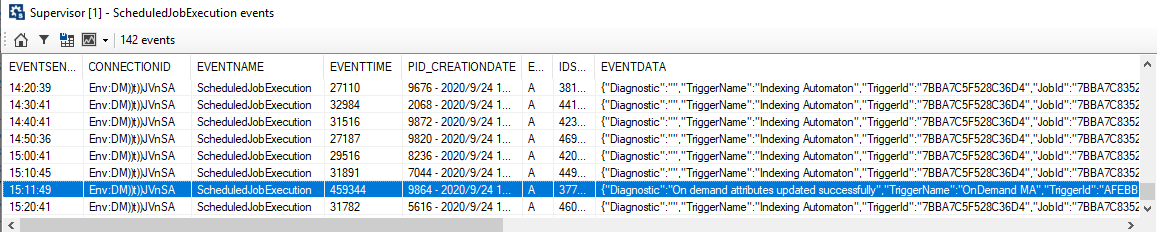
12. Once the System Trigger executed, check its execution time:
• Access the HOPEX Server Supervisor tool.
• In the Events tab, double-click ScheduledJobExecution event row.
• In the list, check the Eventime value of your trigger.
For example, in the EVENTDATA column, look for "TriggerName":"OnDemand MA".E.g.: 459344 ms (i.e.:7'39")
13. According to this processing time, you can configure the trigger scheduling:
• every night on all of the MetaClasses.
• every night on part of the MetaClasses and at the week-end on all of the MetaClasses
You need to create a trigger for each specific case.• several time a day on the MetaClasses that are the most used in HOPEX Solutions and at the week-end on all of the MetaClasses.
You need to create a trigger for each specific case.To configure each trigger scheduling, see Configuring the scheduling of a trigger.
 If needed, contact your MEGA representative to help you setting up the most suitable policy according to your HOPEX usage.