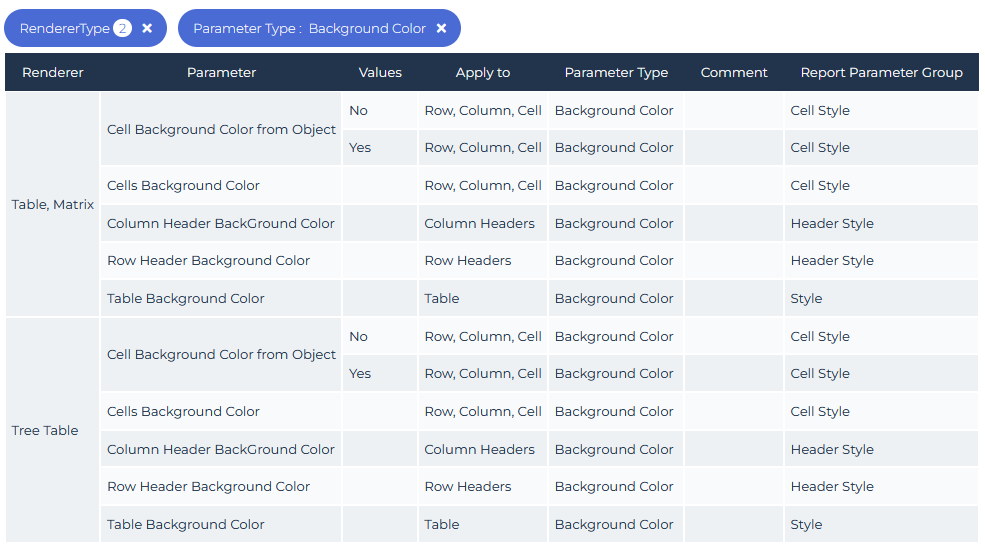
Getting the Parameters available to Customize a Renderer Type
To help you with the parameters available to customize a report according to its renderer type, you can use the Report Style Parameters report template.
This report details for each renderer type all its available parameters, and where they are used.
 See Report Renderer.
To create the report:
1. From the navigation menu, select Report Studio > Reports and click Create a report.
2. In the Objects filter, select "RedererType".
 Enter "renderer" in the search field.
3. Hover the cursor over the Report Style Parameters tile and click Create a report.
4. Use the filters according to your needs:
• RendererType: select the type(s) of rendering
E.g.: TreeTable and Table, Matrix.
• Apply to: select the item(s) you want to customize
• Parameter Type: select the type of parameter you want to apply
E.g.: Background Color.
• Report Parameter Group: select the group of parameter you want to apply
The report displays the parameters you can use to customize you report according to your selection.