The Card of an Object
The card of an object is meant to provide an overview on the essential properties that identify the object in question. The nature of the data displayed depends on the Solution you are using.
Cards can display:
• in a list in the browsing area, from navigation menus and their submenus.
• in the edit area, in the Overview property page of the object.
The card of an object in a list
The card list is accessible via the navigation menus and their submenus. Objects are listed alongside their main characteristics. A card list is always displayed in the browsing area.
To display a list of cards, click Browse  .
.
.• when hovering the cursor over the navigation menus
• to the right of submenus
 To access a list of submenus, click the navigation menu of your choice.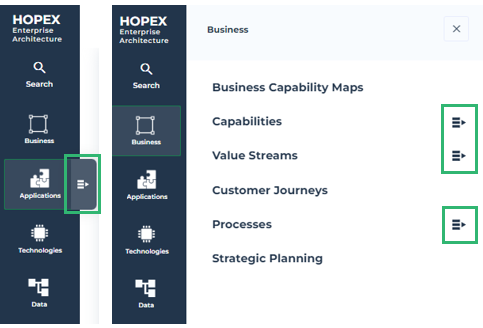
You can also use the Browse button from the edit area. In this case, it lies:
• to the left of an object list tabs
• to the left of an object property pages tabs
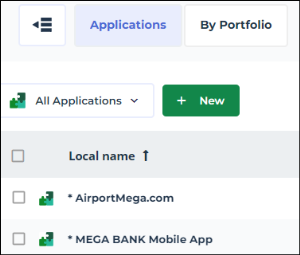
E.g.: the icon appears in the tabs of an application list.
Manage the display conditions of a card list
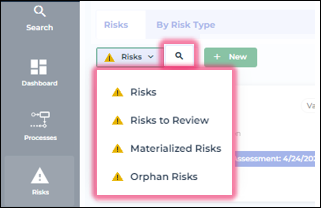
You can organize the display of your card list using the filters at the top of the list that enable to:
• filter the objects by group
In certain Solutions, filtering by group is not available. In that case, the filtering window does not show.• perform a search over the objects contained in the list
E.g.: filters available in a card list of Risks in the HOPEX GRC desktop.
You can also create an object from a card list using the New  button.
button.You can only create an object if the “All” value is selected in the filtering. Once created, the object automatically takes the first position in the card list.Content of the card list
When it appears in a list, the card only shows a restricted amount of information. It is organized as follows:
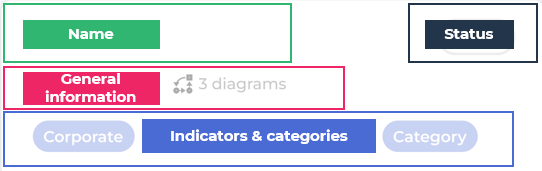
In certains Solutions, the cards show buttons when hovering the cursor. These buttons give access to elements related to the object of the card. These elements are presented as a tree or a list.
The list unfolds beneath the object card, in place of the other cards in the card list. For more information about these buttons, see the documentation of the Solution.
[If applicable] From this tree, you can:
• drag & drop an object into a diagram
• drag & drop an object in the property pages of an other object
• open an object property pages when clicking on the object in question (the property pages then open in the edit area of your desktop)
• open an object property pages in a new tab
Example of an unfolded tree in a list of application cards on the HOPEX IT Architecture desktop.
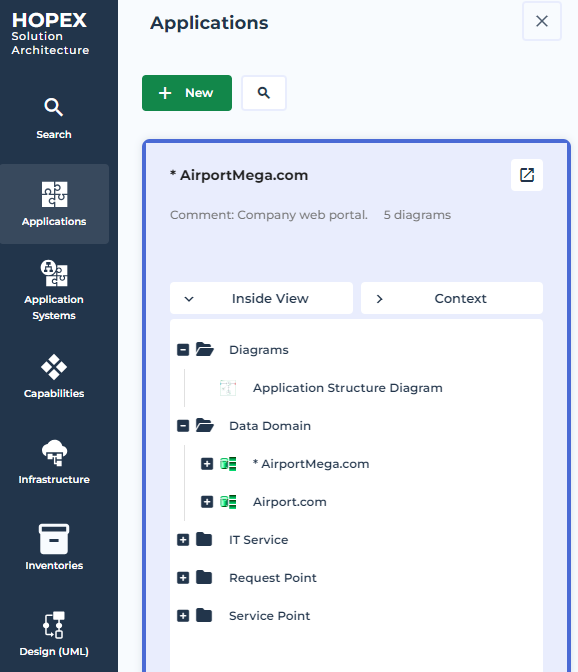
To get more information about an object and access to the card Overview:
• click the card in the list. The Overview page opens in the edit area of your desktop
• click Open in a new tab  to open the Overview property page of the card in a new tab of your HOPEX desktop
to open the Overview property page of the card in a new tab of your HOPEX desktopThe card of an object in its properties
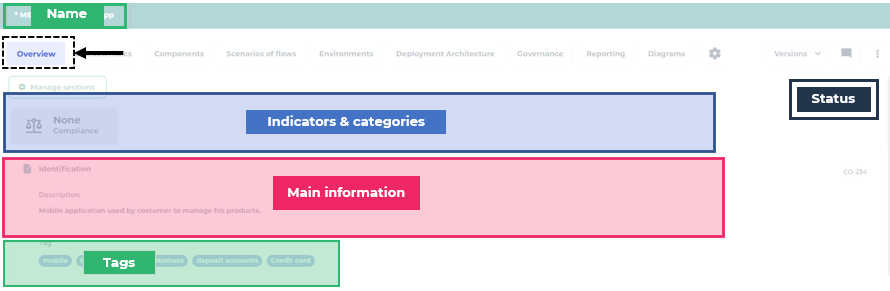
An object card can also display more details. In this case, it corresponds to the Overview page of an object property pages. This page opens by default at the opening of the object property pages. A card Overview displays in read-only mode, you can not operate any modification on it. It is organized as follows: