Creating an MS Word report in HOPEX
HOPEX enables you to create documentation about repository objects: the reports (MS Word).
 These reports (MS Word) are available in .docx format. They are generated in .rtf format then packaged in .docx format so as to reduce size. For further details, see Specificities.
To create a report MS Word you must:
• select the report template (MS Word) you want to base your report on.
HOPEX includes predefined report templates specific to each Solution.• (Optional) define the report distribution list, recipients can be:
• org-units
• persons
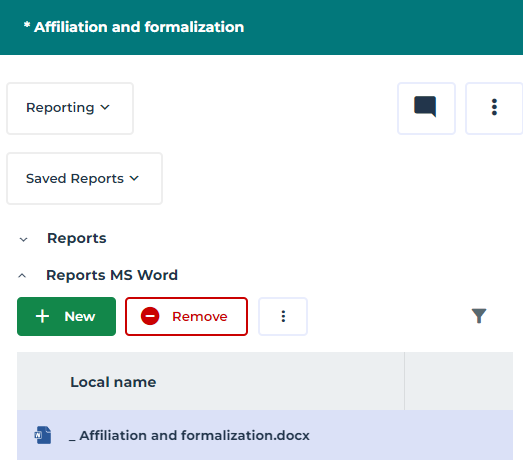
You can create reports MS Word from the Reporting property page of a repository object.
You can also export a report in RTF format and open it in MS Word, see Exporting a Report.To create a report MS Word:
1. Access the object properties.
2. In the Reporting page, click the drop-down menu and select Saved Reports.
3. In the Reports MS Word section, click New  .
.
.4. (Optional) In the Name field, modify the name given by default to your report MS Word.
5. In the Report Template (MS Word), select the report template (MS Word) on which you want your report to be based.
Only those report templates (MS Word) corresponding to the documented object type are proposed.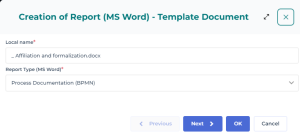
6. Click Next.
7. Populate the recipients of the report MS Word: click Connect and select Org-units and/or Persons.
These can be populated later, see Creating a distribution list. 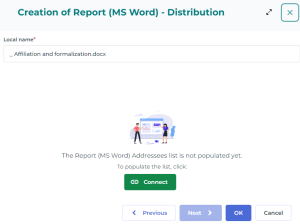
8. Click OK.
The report (MS Word) is added to the report (MS Word) list of the object.