Selecting Objects to Export
Adding objects to a worksheet
Once finished with the parameters of your template, select the objects you need to export.
To indicate objects to be exported:
1. The list of worksheets appears.
2. In the Objects Selection wizard window, in the Excel Worksheets list, select the worksheet you want to add objects in.
 If you selected an existing file as template and selected Load MEGA Objects, the objects can appear by default in the worksheets.The first two lines of an Excel worksheet are reserved for file configuration; if the file is to be subsequently reimported, ensure that these first two lines are retained.
3. In the Objects to export area, click Add objects to list .
The search window pops up and the relevant MetaClass is pre-selected.
4. You can:
• click Search  to display the full list of MetaClass objects
to display the full list of MetaClass objects• use the Search an object typing area to search objects in particular
5. Select the objects to export and click OK.
The objects in question appear in the wizard.
Using an existing list of objects in a link worksheet
You may need to work in the same list of applications for certain Excel file link worksheets.
To use an existing list of objects in an Excel link worksheet:
1. In the Selection of Excel Objects to be Exported dialog box of the wizard, Excel Worksheets section, and in the Object Source Worksheets column, select the worksheet in which you wish to insert the objects, for example the worksheet for "WorkSheet1" applications.
The list proposed presents only the possible source worksheets.2. Click in the Object Source Worksheets column and select the name of the worksheet that contains objects to be exported.
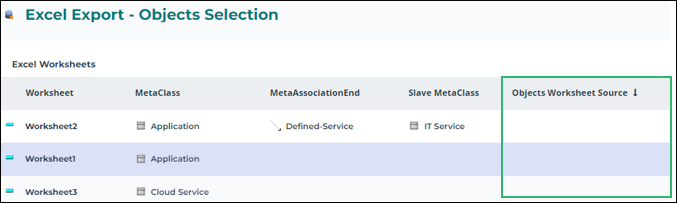
The worksheet name appears in the field.
If you define a list of objects in section Objects to be exported, this list will be ignored and only the objects of the worksheet will be taken into account.3. Click Finish to start export.