Modifying a Shape Fill
You can:
• fill your shapes with a solid color
• apply a color gradient or a pattern
• apply transparency
Defining a shape color
To define the color of a shape:
1. Open the Aspect page.
2. Select the shape that interests you.
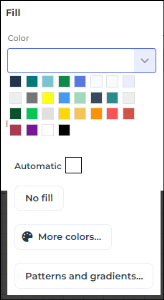
3. In the Colors section, in Fill, select the color of your choice.

 When elements cover other elements, the No fill color enables to view elements in the background.
4. (If needed) Click More colors to adjust the color with the range sliders to the right, or with the hexadecimal, RGB (Red, Green, Blue) or HSV (Hue, Saturation, Lightness) values.
5. (If needed) Add a pattern or a color scale.
Defining a color gradient or a pattern to a shape
You can define two colors to a shape and apply:
• a color scale
The shape color gradually moves from one color to the other one.
• a pattern
To apply a color gradient or a pattern to a shape:
1. Open the Aspect page.
2. Select the shape that interests you.
3. In the Colors > Fill section, click the arrow.
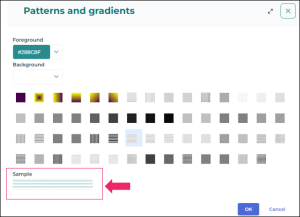
4. Click Patterns and gradients.
The color of the Foreground field is predefined with the shape color.
5. (If needed) Modify the color of the Foreground field.
6. In the Background field, set the color of the background (or second color for a pattern with a color gradient).
7. Select a pattern.
A sample of the rendering is shown.
8. Click OK.
Managing transparency
To apply transparency to a shape:
1. Right-click the shape and select Colors and borders.
2. In the Fill section, in the Transparency field, select or enter a value.
The value indicates the fill transparency level.
E.g.: 0%, by default, indicates that the shape is opaque.