General display of Tabular entry mode
The diagram creation window in tabular mode displays the followings items:
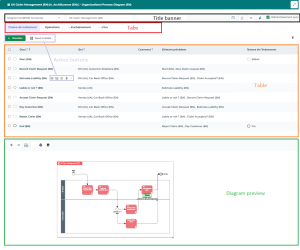
 Tabular entry mode display can vay according to the selected diagram.
 Title banner
The title banner displays the following items:
• Diagram type
• Diagram name
• Switch to vertical  button or Switch to horizontal
  to change display
button or Switch to horizontal to change display• Edit the diagram  button to edit the diagram in graphical mode
button to edit the diagram in graphical mode • Show/Hide the diagram button 
• Refresh the diagram button 
• Auto Refresh case to automatically update diagram preview
Tabs
Tabs are used to display all the objects in the diagram broken down according to their type.
The number and the nature of tabs vary according to the type of diagram and the user profile.Action buttons
With New and Multiple Add buttons, you can add one or several objects in the table.
For further details, see Tabular mode actions.Table
You can fill the following elements in the table:
• object type (displayed in lines)
• Characteristics / links related to objects (displayed in columns)
Display of columns
You can display (or hide) the columns in the table.
To do so:
1. Click  over any column header.
over any column header.2. Select Columns
3. Tick the appropriate columns.
Diagram preview
You can preview the diagram at any time.
From the toolbar at the top of the diagram, you can perform the following actions on the diagram:
• Zoom in 
• Zoom out 
• Show all 
• Print diagram 
• Save the picture 
To move the diagram in the window:
 Click the diagram and move the mouse.