Creating a customer journey map in tabular mode
To create a customer journey map:
1. From the customer journey list, click the Create a diagram  icon related to the selected customer journey.
icon related to the selected customer journey.The diagram creation window opens.
2. Select customer journey Diagram > Create diagram in tabular mode.
The creation of customer journey map window appears in tabular mode.
 For further information on diagram creation in tabular mode, see Diagrams in Tabular Entry Mode.
Creating a phase
 A customer journey phase is a time or experience-bound period within a Customer Journey.
To create a phase:
1. Click the Phases tab.
2. Click New.
The Add Phase window appears.
3. Connect an existing phase or create a new one.
Creating several phases simultaneously
To simultaneously create several phases:
1. Click the Multiple Add button.
The Create Phase window appears.
2. Enter the Number of phases you wish to create.
3. If you wish to create phases with steps, specify the Number of Steps that you wish to create for each phase.
The steps created in the same phase are sequenced.4. Click OK.
Ordering phases
By default, phases are ordered by the order of creation.
To modify the order of phases in a customer journey:
1. Click the Phases tab to access the list of diagram phases.
2. Select the phase whose order you want to modify and click in the Order column.
3. Modify the value of the order of the phase.
Creating a step
A customer journey step is the basic elementary advancement unit of a customer via a customer journey phase.To create a step:
1. Click the Step tab.
2. Click New.
The Choose Object Type window appears.
A step can be associated to a Sub customer journey. The choice of the object type allows you to create a customer journey.3. Select Steps and click OK.
The new step appears in the list of journey phases.
4. Click on the name of the step to update it.
Creating several steps simultaneously
To create several steps simultaneously:
1. In the Steps tab, click the Multiple Add button..
A creation window appears.
2. Enter the Number of Steps you wish to create.
3. Choose Sequenced Steps or Independent Steps.
4. Click OK.
The steps are created but are not connected to a phase.Ordering steps
To define the sequencing order of the steps of a customer journey, you must specify the list of predecessors at each step.
To specify the predecessor of a step of a customer journey from its diagram:
1. From the Steps tab, click the cell at the intersection of the step and the Predecessor column.
2. Select the adequate step.
Specifying the phase of a customer journey step
To specify that a customer journey step is performed within the context of a phase:
1. From the Steps tab, click the cell at the intersection of the step and the Phase column.
2. Select the adequate step.
Defining the channels in a customer journey
A channel is used to identify the enterprise resources used by a persona to achieve a step. For example, a channel can be a phone or internet connexion.Channels are related to customer journey steps.
To create a channel:
1. From the Steps tab, click the cell at the intersection of the step and the Channel column.
2. Connect an existing channel or create a new one.
Defining customer expectations
A customer expectation is an enterprise result expected by the persona at the end of the journey.The expectations of a customer journey are also connected to personas and they must also be connected to the steps in the customer journey that use them.
To connect a new customer expectation to a customer journey:
1. From the Steps tab, click the cell at the intersection of the step and the Expectations column.
2. Connect an existing expectation or create a new one.
Expectations can be created from the Characteristics property page of a persona. Defining customer painpoints
A painpoint describes the difficulties encountered by a persona when carrying out a step in the customer journey.To specify that a new painpoint is connected to a customer journey:
1. From the Steps tab, click the cell at the intersection of the step and the Painpoint column.
2. Connect an existing painpoint or create a new one.
Creating an involved resource in a customer journey
A resource is a means used to perform certain actions.An involved resource may be an actor, an application or a process.
To create an involved resource in a customer journey:
1. From the Steps tab, click the cell at the intersection of the step and the Involved Resource column.
2. Connect an existing involved resource or create a new one.
Defining the business capabilities of a customer journey
.A business capability is a set of features that can be made available by a system (an enterprise or an automated system).To specify that a new business capability is connected to customer journey step.:
1. From the Steps tab, click the cell at the intersection of the step and the Involved Capabilities column.
2. Connect an existing involved capability or create a new one.
Defining the business opportunities of a customer journey
An opportunity characterizes an improvement action for one of the composite elements of the customer journey (steps, touchpoint).To specify that a new business opportunity is connected to a customer journey:
1. From the Steps tab, click the cell at the intersection of the step and the Opportunity column.
2. Connect an existing opportunity or create a new one.
Defining a Moment of truth
A moment of truth is a decisive step for the remainder of the customer journey. Either customers believe that they cannot obtain what they are searching for under the desired conditions and they are not satisfied; Or, on the contrary, they believe that they have found what they are looking for and continue the journey.To specify that a step is a moment of truth:
 From the Steps tab, click the cell at the intersection of the step and the Moment of truth.
A specific icon appears to indicate that the step is a moment of truth.
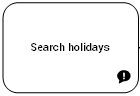
Step declared as a moment of truth
Defining an Action Plan
An action plan comprises a series of actions, its objective being to reduce risks and events that have a negative impact on company activities.To specify that an action plan is implemented for a specific step:
1. From the Steps tab, click the cell at the intersection of the step and the Action Plan.
2. Connect an existing action plan or create a new one.