Connecting to MEGA WEB Front-End
MEGA Web Front-End is the MEGA application accessible via an internet navigator.
To connect to a MEGA application on the Web:
1. Start the MEGA application using its HTTP address.
 If you don't know this address, contact your administrator.
The connection login page appears.
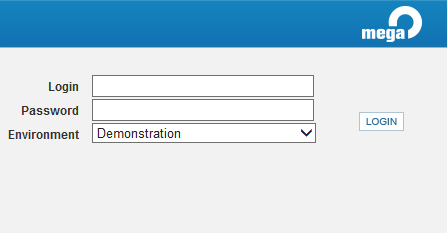
2. From the connection page and in the Login field, enter your identifier.
3. (If you have a password) In the Password field, enter your password.
If you have lost your password, click  (under the connection dialog box).
4. In the Environment field, click the arrow and select your work environment.
If you can access one environment only, this is automatically taken into account and the environment selection field does not appear.5. Click LOGIN.
When you have been authenticated, a new dialog box appears.
6. In the Repository field, click the arrow and select your work repository.
If you can access only one repository, this is automatically taken into account.7. In fields Business Role or Profile field, click the arrow and select the business role or profile with which you want to work.
If you can access only one business role or profile, this is automatically taken into account.In the MEGA Administration application, at the level of the environment options, (Options/installation/User Management), when the "Assignment of business roles to persons" option is not selected, the Profile field appears instead of Business Role.The profile or business role you select defines the applications you can access.8. In the Application field, click the arrow and select the application to which you want to connect.
If you can access only one application with the selected profile/business role, this is automatically taken into account and the application selection field does not appear.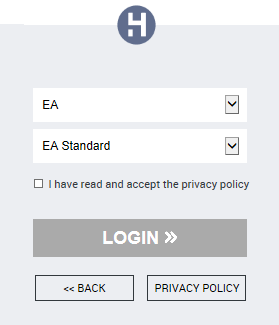
9. Click  (under the connection dialog box) and read the confidentiality policy instructions, then select I have read and accept the privacy policy.
(under the connection dialog box) and read the confidentiality policy instructions, then select I have read and accept the privacy policy.The LOGIN button appears.
When you have read and accepted the confidentiality policy, a certificate is automatically linked to your person and this step is not required again.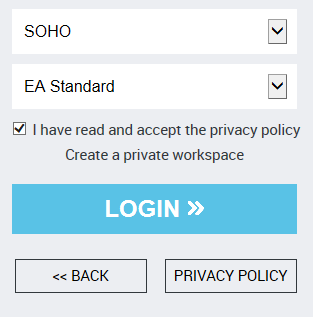
10. Click LOGIN.
Click BACK if you want to return to the authentication dialog box.The Web application home page appears and a session is opened.