Evaluating IS Compliance with City Plan
To run a report on IS compliance with the city plan:
1. Select the Documentation navigation window.
2. Expand the Report folder.
3. Right-click the "IS Compliance with City Plan" report template and select New > Report.
 Generally, you can display report templates available on an object (right-click the object and select "Report Discovery").
A wizard opens.
4. Indicate the report name and click Next.
The wizard indicates the report template with its comment.
5. Click Next.
You must then define the report parameters that correspond to the report input data.
The "IS Compliance with City Plan" report template includes two parameters: IS Items and City Plans.
6. In the IS Items frame, click Connect  .
.
.A query dialog box opens.
7. Select the IS items to analyze, for example applications.
The selected IS items appear in the wizard.
8. In the same way, in the City Plans frame, click Connect and define the second parameter "City plan".
and define the second parameter "City plan".9. Click Next.
You must then define the report chapters.
10. Select the report chapters.
• City plan compliance: indicates applications that best correspond to city planning areas.
• Report parameters: details input data and how it is interpreted in the different reports.
11. Click OK (MEGA Web Front-End) or Finish(MEGA Windows Front-End).
The report appears in the list of reports.
To open a report:
 Right-click the desired report and select Open.
Report results appear in the central page.
Report Results
The "City Planning Compliance" report chapter displays a list of compliance criteria:
• Functional completeness: checks that hosted elements implement all required functionalities. For a maximum score, no functionality must be excluded.
• Functional conformity: each hosted element must implement functionalities in its city planning area and in no other.
• Inter-area data transfer: communication channels carrying contents between city planning areas are sometimes defined. The analysis checks that these information flows comply with expected requirements between areas.
• Technological compliance: the hosted element must be implemented in an area complying with technologies defined in the city planning area.
• Requirements compliance: elements hosted in an area must be subject to the requirements of this area, in other words the element must be linked to these requirements.
• Structural compliance: the structure of elements should be respected; for example sub-applications of an application must be hosted in the same area as the application.
• Standards compliance: a compliant element is an element that respects the standards defined in an area.
Using these criteria, the report compares data defined on the city planning areas (functionalities, requirements, etc.) with those of the hosted elements.
 These criteria are predefined, supplied by MEGA to meet current requirements, but you can add your own report criteria. For more details on adding criteria, see technical article "City Planning Compliance - Adding an IT Criterion.pdf".
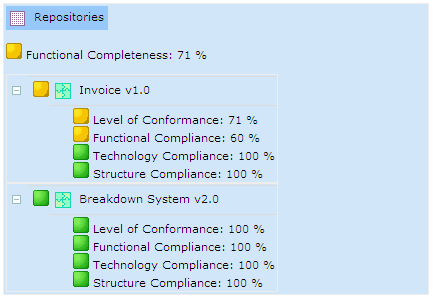
A first table defines in which city planning areas the analyzed elements (in this case the applications named "Invoicing v1.0" and "Breakdown System v2.0") are best inserted.
You can see the results for each criterion by clicking the + sign alongside each element name.
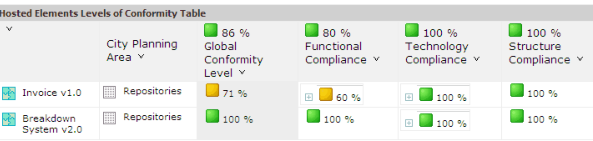
The next table shows compliance levels of each hosted element (application), with the value obtained for each criterion.
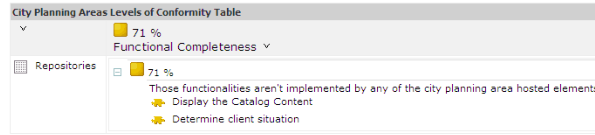
The final table shows compliance levels for each city planning area. In the example below, the "Repository" area displays functional completeness of only 71%, explained by the fact that three of the required functionalities required for this area are not implemented by applications in the area .
The report automatically places hosted applications in areas according to the elements that define it (eg. functionality, requirement, data flow, etc.). The choice is made so that the global compliance score is the maximum possible.
Certain applications may be followed by an icon representing a pushpin  This indicates that the application has been positioned in the area by the user, and not by the report.
This indicates that the application has been positioned in the area by the user, and not by the report.Reports are dynamic; click Refresh  (at top right of the report) to update the analysis to take account of latest modifications to the repository.