Diagrams and their objects
The table below summarizes terms used for the different elements of a complex infrastructure as a function of the context in which the component is implemented.
|
Diagram
|
Described element
|
Associated object
|
Comment
|
|---|---|---|---|
|
Resource architecture diagram
|
Physical asset
|
Artifact
|
|
|
Resource architecture diagram
|
Human asset
|
Org-unit
|
|
|
Resource architecture diagram
|
Architecture use
|
Architecture of
assets
|
Use of an architecture by another one
|
|
Artifact
assembly diagram
|
Artifact component
|
Artifact
|
Use of an artifact in another one
|
|
Artifact
assembly diagram
|
Application host
|
Applications
|
The application is deployed with the object
|
Complex infrastructures are based on two types of concept:
• Elements described in the diagram, either equipment or organizational, that are owned by an architecture, such as: physical asset, architecture use, human asset or application host. Objects associated with these elements can be modified without impacting the elements themselves or their environment.
• Objects associated with these elements. These are resource architectures, artifacts, org-units or applications.
Objects pop-up menu
In a resource architecture diagram, the pop-up menu of an architecture element (for example a physical asset) presents commands specific to the object type deployed for the element (artifact), followed by the commands relating to the physical asset itself. The third pop-up menu level concerns graphics.
 If the type of element associated with the resource is not defined, the first part of the menu does not appear.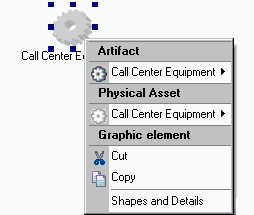
Described element properties
To access the object that defines an element of a resource architecture:
1. Open the properties dialog box of the element (for example an architecture use) and select the Characteristics tab.
The object that defines the element (in this case a resource architecture) appears in Deployed Resource field.
2. Click the arrow at the right of the Deployed Resource field to access the pop-up menu of the deployed resource or to replace it without changing the current element.
Associated Object Properties
You can specify properties on an artifact, a resource architecture, an org-unit or an application.
You can for example assign a transmission mode to call center telephones, a serial number or any other specific characteristic.
To define a property:
1. Open the properties dialog box of the object, select the Properties tab.
Example: "Telephone" artifact.
2. Click New  .
.
.The creation of property value dialog box opens.
3. Enter the name of the property, its type and value.
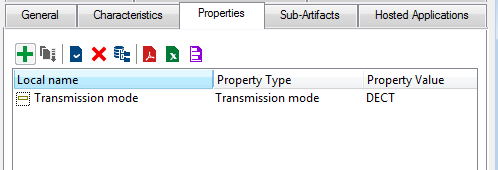
When the property type has been created, you can assign different values to it on different objects. Depending on objects therefore, "Transmission Mode" can take values "DECT", "Wi-Fi", etc.
To specify a new value:
 When adding a property to an object, using the arrow find the Property Type in question (here, Transmission Mode) and define a new value for the object to which the property applies, for example Wi-Fi.
 Property inheritance
When an object inherits the properties of another, inheritance relates to the value of the property and not of the type. Therefore if you have defined on an object a property of "Transmission Mode" type with value "DECT", objects inheriting this object will all have transmission mode "DECT".
To modify the value of an inherited property, you must create a new property of the same type with a new value (for example, transmission mode "Wi-fi") and replace the inherited property by the new.
For more details on variations, see the MEGA Common Features guide, "Handling Repository Objects", "Object Variations".