Creating a Mapping Tree
The mapping tree will allow you to deploy the required infrastructure of an application.
In the following example, you will deploy the infrastructure of the "Office System" application in the Bordeaux agency.
The use of the mapping editor varies slightly depending on whether you are in MEGA Windows Front-End or MEGA Web Front-End.
MEGA Windows Front-End
To create a mapping tree:
1. From MEGA menu bar, select Tools > Mapping Editor.
2. In the mapping editor menu, select File > Create Mapping Tree.
3. Indicate the name of the tree created.
4. In the Nature field, select the nature of the tree.
Example: "Application Deployment".
5. In the Left Object pane, select the application to be deployed.
Example: "Office system".
6. In the Right Object pane, select the site on which the application will be deployed.
Example: "Bordeaux Agency".
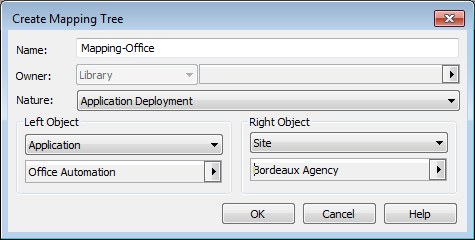
7. Click OK.
The mapping tree appears.
The editor displays on the left the required technical infrastructure for the "Office System" application, and on the right the infrastructure for the "Bordeaux Agency".
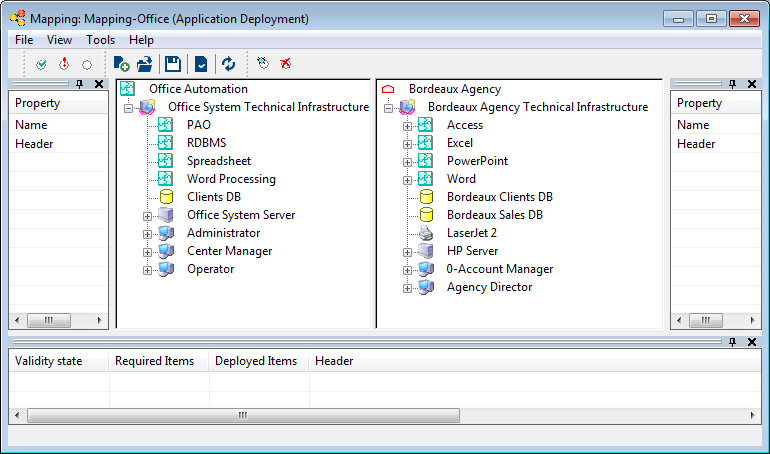
8. Select Tools >Mapping Editor.
A dialog box opens.
9. Leave the Create Mapping Tree option selected and click Next.
10. Indicate the name of the new mapping tree.
11. In the Nature list box, select the nature of the tree. In this case it consists of mapping data models.
12. In the Left Object and Right Object fields, from the object types concerned (data model), select the models you wish to align.
13. Click OK.
The editor displays the mapping tree juxtaposing the two models.
MEGA Web Front-End
To create a mapping tree:
1. Select Tools >Mapping Editor.
A dialog box opens.
2. Leave the Create Mapping Tree option selected and click Next.
3. Indicate the name of the new mapping tree.
4. In the Nature list box, select the nature of the tree.
Example: "Application Deployment".
5. In the Left Object pane, select the application to be deployed.
Example: "Office system".
6. In the Right Object pane, select the site on which the application will be deployed.
Example: "Bordeaux Agency".
7. Click OK.
The editor displays the mapping tree juxtaposing the two models.
