Running the Check Tool (MEGA Windows Front-End)
Checking diagram objects
MEGA allows you to check the objects in your diagram..
To run the check tool:
1. From the menu bar of your MEGA Architecture desktop, select Diagram > Check > Check Descriptor.
A dialog box asks you to select a check type.
2. Select "Check of an application architecture diagram" and click OK.
An HTML page opens, detailing checks carried out.
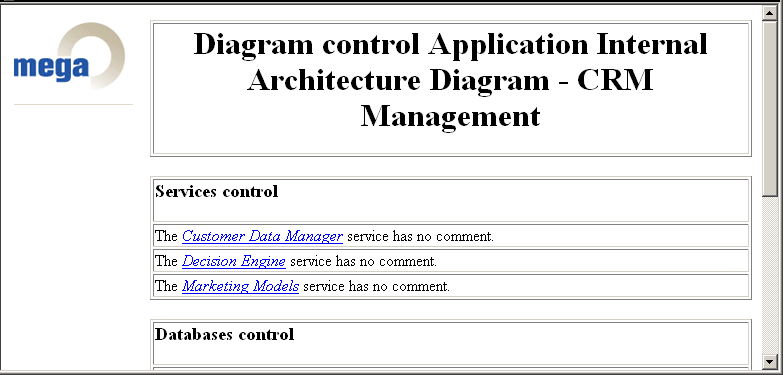 Objects with no comment are indicated. When you click on the link representing the name of the checked object, the explorer opens and allows you to carry out the necessary modifications.
When the diagram has been completed, you can again produce its report (MS Word).
 For more details on production of reports (MS Word), see the MEGA Common Features guide, chapter "Generating Documentation with MEGA", paragraph "Generating Reports (MS Word)".
In MEGA Architecture, the check tool is available on:
• application (AAD) or technical (TAD) architecture diagrams
• Application and Service type objects (via the pop-up menu).
Applying consistency rules
You can check your diagram by applying a regulation. A regulation is a set of rules that defines how to model objects.
To apply a regulation to a diagram:
1. Open the diagram in question.
2. From the menu bar of your MEGA Architecture desktop, select Diagram > Check > Regulation with Propagation.
The list of regulations that partition rules appears. When a regulation has been defined in the options, it is proposed by default in the list.
3. Select the regulation that you want to apply to the diagram.
4. Click OK.
A report in the form of an HTML page opens. It contains results of the consistency check on diagram objects. Icons appear alongside each object indicating if a rule has been respected or not.
For more details on consistency rules, see the MEGA Common Features guide, chapter "Exploring the Repository", paragraph "Checking Objects". See "Checking Objects", page 229.