Adding a Diagram
You can define:
• Report (MS Word) diagram presentation
• Report (MS Word) diagram orientation
To add a diagram:
1. Add a new group.
 See Creating Groups.
2. From the Properties of a group dialog box:
• in the Described object field select "Diagram"
• in the Query of MetaAssociationEnd select "Diagram".
3. Click OK.
4. Right-click the group and select Insert > Diagram.
The icon representing a diagram appears in the tree.
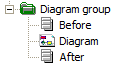
5. Right-click the diagram icon and select Properties.
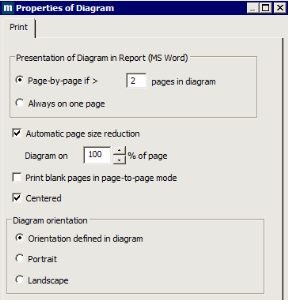
6. In the Presentation of Diagram in Report (MS Word) you can define if you want your diagram to be displayed on one or several pages in the generated report (MS Word):
• By default, the Page by page option is selected if your drawing needs more than 2 pages. You can modify the setting for the number of pages required to activate this option.
• The All Diagram on one Page option scales the entire drawing to fit on a single page. In this case the size is automatically reduced.
7. You can reduce the diagram size (in % of page).
8. Select the Print blank pages in page-to-page mode option so that unused pages are inserted in the diagram.
9. By default the diagram is centered, unselect Centered if you do not want the diagram to be centered.
10. In the Diagram orientation pane, define the orientation of the diagram at generation.
• Portrait for a vertically oriented diagram
• Landscape for a horizontally oriented diagram
• Orientation defined in diagram for a diagram oriented as specified in the diagram editor (Diagram > Page Setup).