Creating an ArchiMate Element in a diagram view
Creating an ArchiMate® Element
To create an Application component, for example:
1. In the diagram insert toolbar, click the Application component button.
2. Click in the diagram.
The adding window opens.
3. Enter the name of the new element.
A message confirms that no objects match this name.
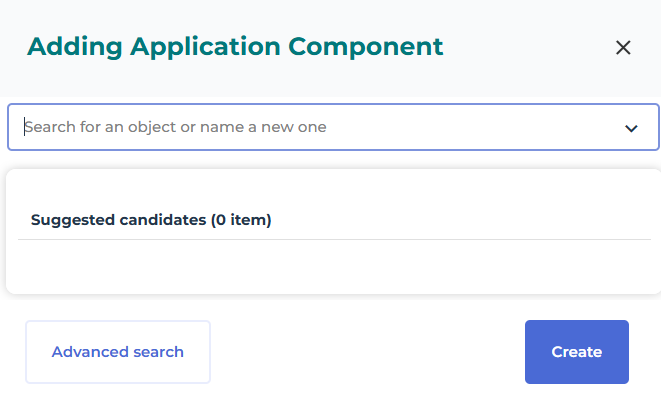
4. Click Create.
The Application component appears in the diagram with the specified name.
Creating several ArchiMate® Elements
To create several Application Functions, for example:
1. Double-click the Application Function button and then click in the diagram
The new Application Function appears in the diagram.
2. Press key <Esc> to stop the Application Functions creation.
3. To rename the Application Functions, click the name of the Application Function, press key <F2> and enter a new name.
Reusing ArchiMate® Elements
To add an existing object to an ArchiMate diagram, you can drag and drop the object from a hierarchical view or from the insert toolbar of the diagram.
Reusing an ArchiMate® Element using the hierarchical view
You can drag and drop an existing ArchiMate® Element from the navigation tree.
For example, to reuse an existing Business Service:
1. In the navigation menu Models, expand your ArchiMate® Model folder.
2. Expand the Elements folder and the Business Service folder.
3. Click the Business Service that interests you and, holding down the mouse button, drag the cursor to the in the diagram and release the mouse button.
The corresponding Business Service appears in the diagram.
Reusing an ArchiMate® Element using the insertion toolbar of a diagram
To add an Application component, for example, using the insert toolbar of an ArchiMate diagram:
1. In the diagram insert toolbar, click the Application component button.
2. Click in the diagram.
The adding window opens.
3. In the object name box, click the down arrow.
The list of the model Application components is displayed.
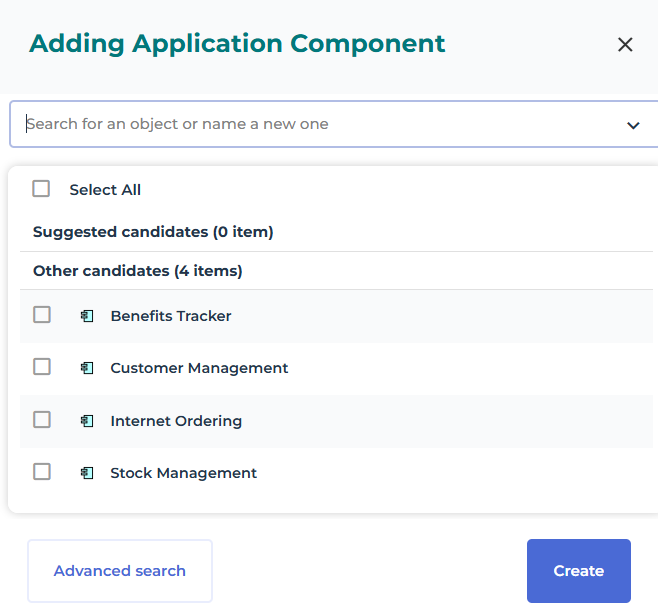
4. Enter the name of the element you wish to create.
The application component appears in the diagram with the specified name.
 You can select several components. Each one will be added to the diagram.