Connecting Users to Reading Access Areas
A user can:
• be connected to a reading access area
This area defines the view the user has of the repository and the objects the user can access.
This area defines the view the user has of the repository and the objects the user can access.
• have a reading access area at creation
Occurrences created by the user belong to this reading access area at creation.
Occurrences created by the user belong to this reading access area at creation.
 If a user does not have a reading access area at creation, the occurrences he/she creates will belong to the standard reading access area.
Reading access area of the user
To connect a user to a reading access area:
1. Open the reading access diagram.
2. Right-click the reading access area concerned and select Properties.
3. Select the Persons tab and click Connect.
If you want to create a new user and associate him/her to a reading access area, select New > Person.The access area member search dialog box appears.
4. In the first query field, select the type of access area member you wish to connect: Person (or Person Group).
If you want to connect persons and person groups, select Access Area Member.5. (optional) In the second query field, enter the character string to be queried.
6. Click Find.
7. In the result list, select the person (press the [CTRL] key to select several) and click Connect.
The user appears in the reading access area.
Reading access area at creation
You can assign a reading access area at creation to an existing user from:
• the reading access diagram
• the Properties dialog box of the person
To assign a reading access area at creation to a user from the reading access diagram:
1. Place the user in the reading access diagram.
2. Connect the desired reading access area at creation to the person. This area must be at a level lower than or the same as the reading access area of the user.
A dialog box asks you to select the type of link to be created: Access area member or Access area member at creation.
3. Select the link type Access area at creation member.
This area is the reading access area at creation of the user.
To assign a reading access area at creation to a user from the user properties window:
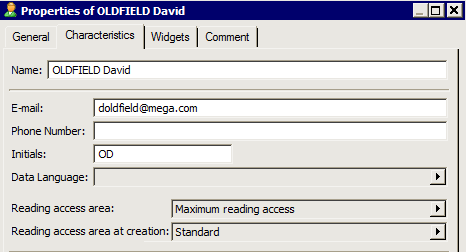
1. Open the Properties dialog box of the person and select the Characteristics tab, see Modifying the Properties of a User.
2. In the Reading access area at creation field, select the required value.