Creating a TreeSet Definition
A TreeSet Definition is MetaClass-specific.
The TreeSet Definition is based either on:
• a collection parameter (an occurrence or a set of occurrences of the source MetaClass)
The TreeSet Definition creation consists in defining the root MetaClass (concrete or abstract) of the TreeSet Definition.
• a query (a set of occurrences)
The TreeSet Definition creation consists in defining the root MetaClass and a query that collects the entry points.
In that case, you might need to use Property Parameters.
The TreeSet Definition Structure  includes a root TreeSet Collection
  with as many items as needed:
includes a root TreeSet Collection with as many items as needed:• TreeSet Properties 
• TreeSet Collections with:
with:• TreeSet Properties
• TreeSet Collections
Creating a Collection Parameter - based TreeSet Definition
When you create a TreeSet Definition based on a Collection Parameter, you need to define its root MetaClass.
To create a TreeSet Definition based on a Collection Parameter:
1. Access the custom TreeSet Definitions list.
2. In the list menu bar, click New  .
.
. If you accessed all the TreeSet Definitions displayed as a tree, click New .
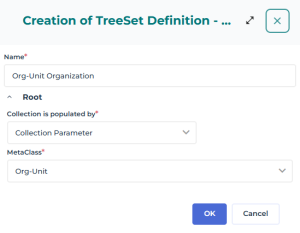
The Creation of TreeSet Definition window appears
3. In the Name field, enter your TreeSet Definition name.
By default the TreeSet Definition name is: TreeSet Definition-x (x is a number).Example: Org-Unit Organization.
4. Define the Root section:
• In the Collection is populated by field keep "Collection Parameter".
• In the MetaClass field, click the arrow and in the drop-down menu select the MetaClass you want to define as the root MetaClass of your TreeSet Definition.
 In the field, enter the first letters of the MetaClass for a quick access.
Example: Org-Unit.
5. Click OK.
The selected MetaClass is defined as your TreeSet Definition root MetaClass.
Your TreeSet Definition is created and added to the customTreeSet Definition list.
6. In the list, click your TreeSet Definition name.
Its properties display.
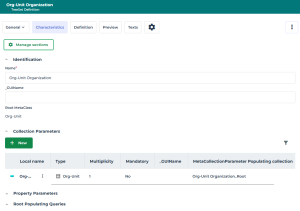
7. Its Characteristics page shows:
• the Root MetaClass
• the Collection Parameter characteristics.
For example, with "Org-Unit" as root MetaClass, the Collection parameter characteristics are:
- Type: "Org-Unit" MetaClass
- Multiplicity: "1" (default), i.e. the root TreeSet Collection is populated by a single object
- MetaCollectionParameter Populating collection: "Org-Unit Organisation_root", i.e. this Collection parameter populates the root node of the "Org-Unit Organization" TreeSet Definition.
8. (If needed) In the _GUIName field, enter a GUI name for the Collection Parameter.
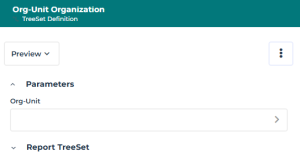
This parameter is displayed in the TreeSet Definition Preview page.
If you do not define a GUI name, the local name is used.
Example: _GUIName: Org-Unit.
9. (If you want to collect several objects) In the Multiplicity field, select "N".
In that case, at TreeSet creation the user can enter several objects (Entry Point Collection values), which are taken into account to build the TreeSet.
Example: _GUIName: Org-Units, and Multiplicity: N.
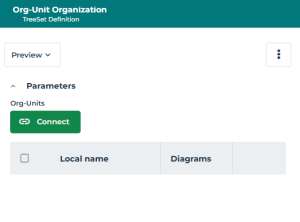 For an example, see How to Add Several Objects to the Root Collection.
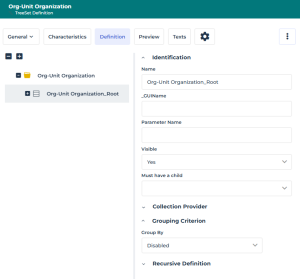
10. In your TreeSet Definition properties, display its Definition page.
• the left pane displays the TreeSet Definition structure with its root TreeSetCollection
• the right pane displays the properties of the element selected in the left pane
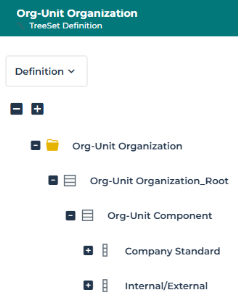
Example: The "Org-Unit Organization" TreeSet Definition is created and includes its root node.
11. Define the TreeSet Definition structure:
• you can add TreeSet Collections
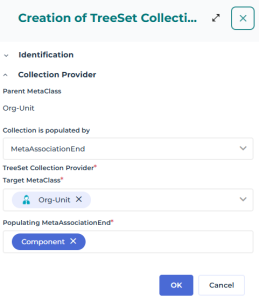
Example: you can add the "Org-Unit Component" TreeSet Collection
In the Collection Provider section:
Collection is populated by: "MetaAssociationEnd"
Target MetaClass: "Org-Unit"
Populating MetaAssociationEnd: "Component".
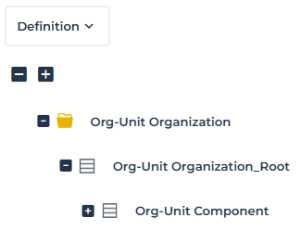
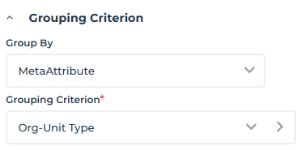
• you can add a grouping criterion on a TreeSet Collection
Example: you can add a grouping criterion on the "Org-Unit Component" TreeSet Collection, in the Grouping Criterion section:
Group by: "MetaAttribute", Grouping Criterion: "Org-Unit Type"
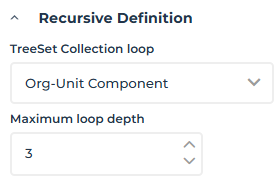
• you can add a loop on a TreeSet Collection
Example: you can add a loop on the "Org-Unit Component" TreeSet Collection, in the Recursive Definition section:
TreeSet Collection loop: "Org-Unit Component" with a Maximum loop depth of "3".
• you can add TreeSet Properties
Example: you can add two TreeSet Properties to the "Org-Unit Component" TreeSet Collection: two MetaAttribute values of the Org-Unit Component.
12. Display the TreeSet Definition Preview page and test the report.
The TreeSet is displayed as a TreeTable. It shows its first three levels expanded, with objects in rows and corresponding Properties in columns.
Creating a query-based TreeSet Definition
When you create a TreeSet Definition based on a query, you need to define:
• its root MetaClass
• its populating query, which is based on the root MetaClass selected
You can use a provided query or create your own query.
For example you can create a query that retrieves all the Applications with "5 stars" ranking, get their Software Technologies, and for each Technology its Vendor and risks.
To create a query-based TreeSet Definition:
1. Access the custom TreeSet Definition list.
2. In the list menu bar, click New .
.If you accessed all the TreeSet Definitions displayed as a tree, click New .The Creation of TreeSet Definition window appears
3. In the Name field, enter your TreeSet Definition name.
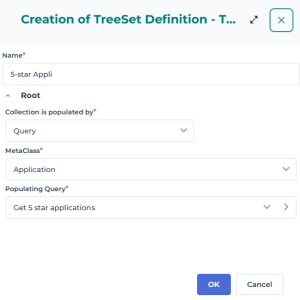
By default the TreeSet Definition name is: TreeSet Definition-x (x is a number).Example: 5-star Appli.
4. In the Root section, in the Collection is populated by field, select "Query".
The Populating Query field appears.
5. In the MetaClass field, use the drop-down list to select the MetaClass you want to define as the root MetaClass of your TreeSet Definition.
In the field, enter the first letters of the MetaClass for a quick access.Example: Application.
6. In the Populating Query field use the drop-down list to select the query used to collect the entry point.
Only the root MetaClass related queries are available. You can also create your own query. Example: "Get 5 star Applications".
7. Click OK.
The selected MetaClass is defined as your TreeSet Definition root MetaClass.
Your TreeSet Definition is created and added to the custom TreeSet Definition list.
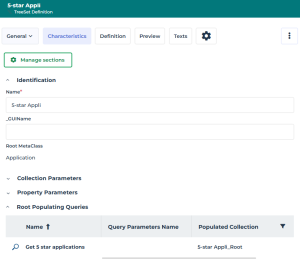
8. In your TreeSet Definition properties, display its Characteristics page.
It displays the Root MetaClass, and how to populate the TreeSet:
The Root Population Queries section displays the query used to populate the TreeSet.
9. In your TreeSet Definition properties, display its Definition page.
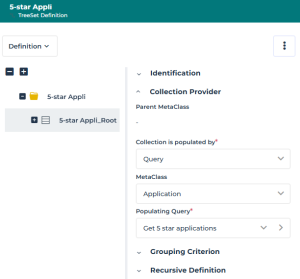
• the left pane displays the TreeSet Definition structure with its root TreeSetCollection
• the right pane displays the properties of the element selected in the left pane
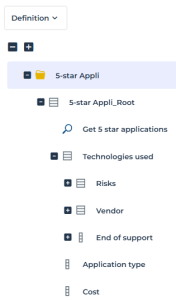
Example: The "5-star Appli" TreeSet Definition is created and includes its root node.
10. Define the TreeSet Definition structure:
• you can add TreeSet Collections
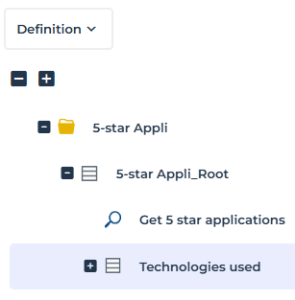
Example: you can add the "Software Technology" TreeSet Collection.
Local Name: Technologies used
In the Collection Provider section:
Collection is populated by: "MetaAssociationEnd"
Target MetaClass: "Software Technology"
Populating MetaAssociationEnd: "Supporting Software Technology"
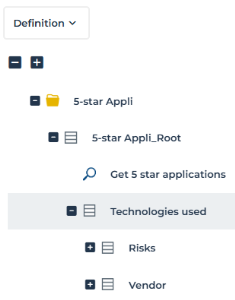
Example: from "Technologies used", you can add the "Risk" and "Vendor" TreeSet Collections.
In the Collection Provider section:
Collection is populated by: "MetaAssociationEnd"
Target MetaClass: "Risk" and "Org-Unit"
Populating MetaAssociationEnd: "Risk" and "Vendor"
• you can add a loop to a TreeSet Collection
• you can add TreeSet Properties
Example: you can add:
- one TreeSet Property to the "Technologies used" TreeSet Collection: the "End of support" MetaAttribute value of the Technology.
- two TreeSet Properties to the "5* applications_Root" TreeSet Collection: the "Application Type" and "Cost" MetaAttribute values of the Application.
11. Display the TreeSet Definition Preview page and test the report.
The TreeSet is displayed as a TreeTable. It shows its first three levels expanded, with objects in rows and corresponding Properties in columns.
Note that folders (if any) count for levels two. Exemple: the TreeSet includes all of the applications with a 5-star ranking, and for each application its Software Technologies and their corresponding property values.
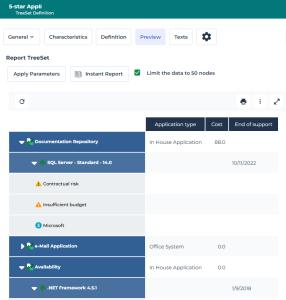
12. Click the arrow next to each Object to hide (/display) a level.
Example: Vendors and Risks are hidden.
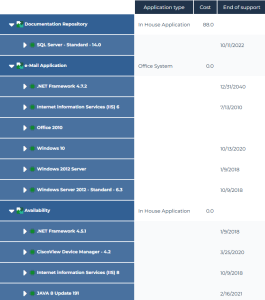
13. Click Instant Report to create your Tree type report as a:
• Breakdown
• Dendrogram
• TreeMap
• TreeTable
With the same TreeSet, you can create Tree reports of each type.
Creating property parameters
In your TreeSet Definition, you can create and define Property Parameters that you can use in any query used in the TreeSet Definition.
At TreeSet creation the user is asked to enter the parameter values, which are taken into account in the query.
To add a property parameter to the TreeSet Definition:
1. Access the TreeSet Definition properties.
2. Display the Characteristics page.
3. In the Property Parameters list, click New  .
.
. You can add as many parameters as needed.4. In the Meta Property Parameter creation window:
• enter a Local Name (name displayed in the TreeSet)
Example: Begin date
• (according to your needs) modify the default values for MetaAttribute type ("String"), MetaAttribute Length and MetaAttribute Format ("Standard")
For detailed information regarding MetaAttribute characteristics, see MetaAttribute Characteristics.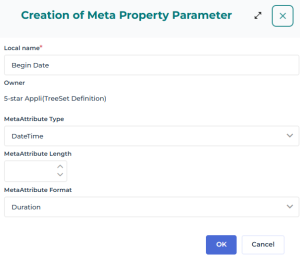
5. Click OK.
The property parameter is added to the Property Parameters list.
6. In the Query Parameter Name field, enter a name for the parameter. This name is the one used in the query.
Example:
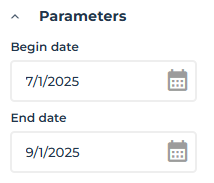
When you add "Begin Date" and "End Date" Query Parameters, at TreeSet creation the user is asked to enter both dates, which filter the TreeSet result according to the these dates.