Data Model Mapping
Data modeling reflects the activity of an enterprise and is based on business function history. Differences observed between models are generally cultural or linked to conventions that vary from one person to another and over time. In addition, in expressing a business function requirement, the modeler must take account of what already exists and reconcile different views of the same reality.
Mapping of data models simplifies alignment of this heterogeneous inheritance on a common semantic base.
Functional Objectives
Distinguishing enterprise definitions and business function data
To ensure consistency of business function data, modelers can refer to enterprise definitions serving as the reference framework.
Data model mapping establishes a distinction between enterprise level definitions and business data, while assuring traceability. The Dictionary tool supplements this approach, enabling compilation of business function vocabulary structured as a dictionary.
Integrating existing models
Existing models describing applications assets must be taken into account when creating new models or at the time of a revision project. Requirements vary according to use cases:
• "As-is to-be" type approach: development of a data model is progressive and is based on a stable reference state, which generally corresponds to data of the system in production.
• Software package installation: each software package (PGI, CRM, etc.) imposes its data model, encouraging a trend towards fragmentation and compartmentalization of the IS. Hence the need to have an independent model, linked to the different imposed models.
Mapping of data models is a means of bringing together the data models from different sources.
Use case
A typical case of data mapping occurs in the context of exchanges between applications, each with their own data models. When the number of applications becomes too high, you can install a reference pivot model that will serve as intermediary between the applications and thus avoid multiplication of mappings.
Running the mapping editor
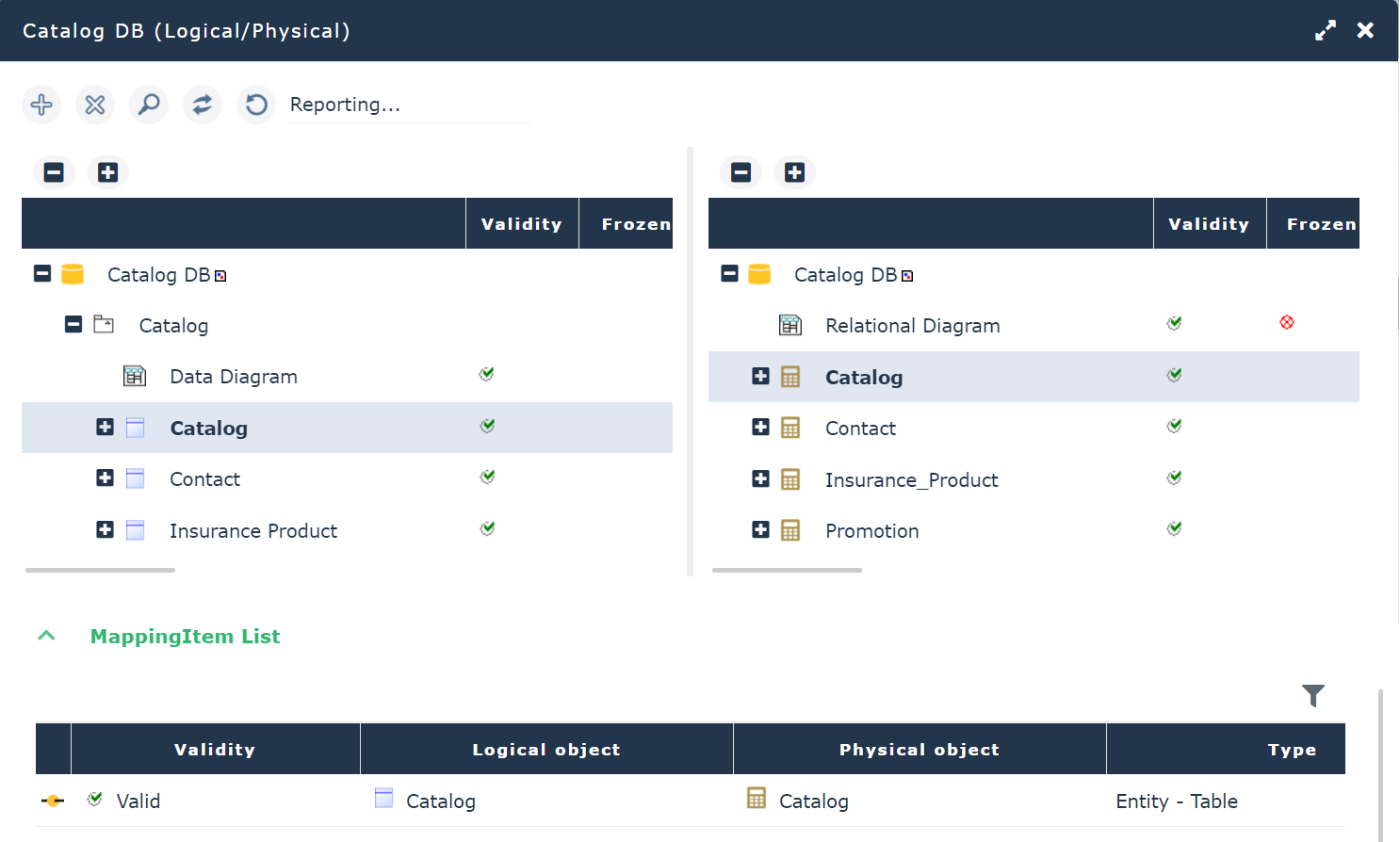
The mapping editor tool is used to align two data models or to map the logical and physical view of a database. It comprises a mapping tree that juxtaposes the views of two models.
You can run the mapping editor from:
• HOPEX navigation menu
• A data model
• A data package
• A database
To run the mapping editor from the navigation:
1. Click the Tools > Mapping Editor navigation menu.
A dialog box appears.
2. Leave the Create Mapping Tree default option selected and click Next.
3. Indicate the name of the new mapping tree.
4. In the Nature list box, select the nature of the tree.
5. In the Left Object and Right Object frames, from the object types concerned, select the models you wish to align.
6. Click OK.
The editor displays the mapping tree juxtaposing the two models.
When the mapping tree has been created, you can subsequently find it in the mapping editor.
Creating a mapping
To create a mapping between two objects:
1. In the mapping editor, successively select the two objects concerned.
2. Click the Create mapping item button.
The mapping is created from the last object selected.
Deleting a mapping
To delete a mapping on an object:
 Select the object in question and click the Delete mapping item button.
Mapping details
Objects with mappings are ticked green. When you select one of these objects in the mapping tree, its mapping appears in the details window, which by default is at the bottom of the mapping editor. It groups the names of connected objects, the object types and comments where applicable.
Mapping properties
To view mapping properties:
In the editor details window, select the mapping item and click the Properties button.Object status
Indicators enable indication of status of synchronized objects.
Object status can be characterized as:
 Valid
Valid  Invalid (when an object has kept a mapping to an object that no longer exists)
 No mapping
Mapping source
When you select an object in the tree of one of the models in the editor, you can find its mapping in the other model .
To display an object mapping:
1. Select the object in question.
If there is a mapping item for the object, it is displayed at the bottom of the mapping editor.
2. Select the mapping item and click the Locate button 
The mapped objects appear in bold in the editor.
Example of mapping between data models
Different modeling levels can cover distinct requirements. Take the example of two data models. A business function data model "Order Management (DM)" is at conceptual level. It describes at business function level how orders should be managed.
At logical level, the "Order Management (Agency)" data model presents an operational view of IS system data specific to each agency.
We find identical concepts in each of the models. These are however distinct objects.
You can map the two data models to favor cohesion between the business function requirements and the systems that support them.
To do this:
1. Open the Mapping Editor.
2. Create a mapping tree.
3. Select the two models to be aligned.
4. Click OK.
The editor displays the mapping tree juxtaposing the two models.
5. Create mappings between similar objects and then save.
When models have been mapped, you will know which logical objects is attached to business function objects. You can also analyze the impact of changes carried out at business function level on operational level and vice versa.