Managing Report Properties
The Characteristics property page of a report includes:
• useful characteristics, especially to filter reports during a report search:
• Who is concerned by the report?
• Categories
• Tags
• the report Description (displayed above the report)
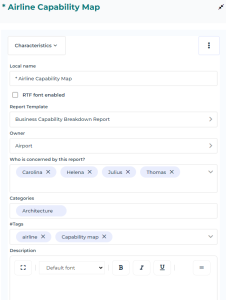
Accessing report properties
To access the properties of a report:
1. Access the reports.
 See Accessing a report.
2. In the list of reports, hover the cursor over the report of interest and click Properties  .
.
.The report properties display on the right of the report list.
To display the properties of an open report:
1. Display the report.
2. In the report title bar, click More  > Properties .
> Properties .The report properties display on the right of the report.
Modifying the persons concerned by a report
When creating a report, you can define the persons that are concerned by this report. These persons can then access the report easily through the report search with the filter My reports.
To modify the persons concerned by a report:
1. Access the properties of the report.
2. Display the Characteristics page.
3. Using the drop-down menu of the Who is concerned by this report? field, select the persons or enter the name of a person in the field.
Adding tags to a report
When creating a report, you can attach tags to it. These tags can be also used to filter reports during a search and ease access to them.
To add tags to a report:
1. Access the properties of the report.
2. Display the Characteristics page.
3. Using the drop-down menu of the Tags field, select an existing tag or enter a new tag in the field.
Adding a description to a report
When creating a report, you can add a description to it. This description is displayed above the report.
You can also add a description to a report chapter, see Adding a Description to a Report or to a Report Chapter.To add or modify a report description:
1. Access the properties of the report.
2. Display its Characteristics page.
3. In the Description text area, enter the description of the report. You can use the text editor of the text zone to help you.
Hiding a report chapter
Report chapters vary according to report type. In the report results, you can show some chapters and hide others.
To define the chapters to display:
1. Access the properties of the report.
2. In the Report Chapters, in the Presence column, clear the chapters you want to hide.
By default, all chapters are displayed.