Handling a Treemap
A Treemap shows a hierarchy of data as nested boxes whose size varies according to the associated value.
Treemaps enable to identify trends and make quick comparisons.
You can:
• modify the number of displayed levels
• modify the display criterion
• display an item (box) properties
• zoom in an item (box)
You can also:
• modify the box style (text size and box colors)
• sort boxes by size (Java reports)
Customizing a treemap display
You can customize:
• the colors
• a box (series) color change on hover
• the box border color and thickness
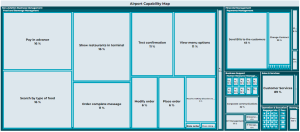
• the size of the text displayed in the boxes
• (by default) box size dependent

• box width dependent

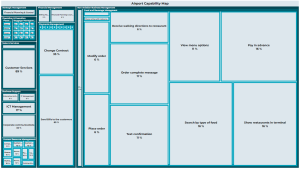
• the box sorting order (in Java report)
• descending
• ascending
Modifying a treemap colors
To modify a treemap box (series) color:
1. Edit the report (click More  > Edit Report
  ).
).
> Edit Report ).2. In the report page, click Edit Style Parameter Values  and select the series for which you want to modify the color.
and select the series for which you want to modify the color.The edit pane appears.
3. In the Style section, modify the relevant parameters:
• Box Color
• Box Border Color
• Box Border Thickness
 To reset the values, click Reset Parameter Values
  . Caution: the style parameter values in the report chapter are also reset.
4. Click Apply.
Your modifications are immediately taken into account in the report.
If the modifications do not appear automatically click  .
.Modifying the text display in boxes
To modify the text display in a treemap boxes:
1. Edit the report (click More > Edit Report ).
> Edit Report ).2. In the Graphic Style section, modify the Proportional Text Size field.
To reset the values, click Reset Parameter Values . Caution: the style parameter values in the report chapter are also reset.3. Click Apply.
Your modifications are immediately taken into account in the report.
If the modifications do not appear automatically click .Modifying the sorting order of boxes
To modify the sorting order of boxes in a treemap:
1. Edit the report (click More > Edit Report ).
> Edit Report ).2. In the Graphic Style section, modify the Sort boxes by size field.
To reset the values, click Reset Parameter Values . Caution: the style parameter values in the report chapter are also reset.3. Click Apply.
Your modifications are immediately taken into account in the report.
If the modifications do not appear automatically click .Example of a Report Template showing a treemap
The “Capability Treemap” report template of the EA Solution presents a treemap.
This report breaks down a capability hierarchy into a treemap according to three available criteria (parameters):
• Number of components: the surface area is proportional to the number of descendants in the tree.
• Application ratio: the surface area is proportional to the number of realizing applications of current and descendant capabilities in the tree.
• Cost of applications: the surface area is proportional to the cost of applications realizing current and descendant capabilities in the tree.
To handle a treemap:
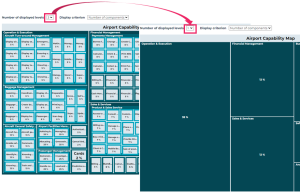
1. To lighten a treemap display, in the Number of displayed levels field, select an upper level.
Lower levels are hidden.
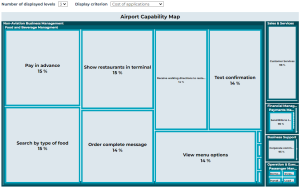
2. To display the treemap according to another criterion, in the drop-down menu of the Display criterion field select another criterion.
E.g.: Cost of applications.
The box area corresponding to each element (e.g.: capability) is modified according to the new display criterion.
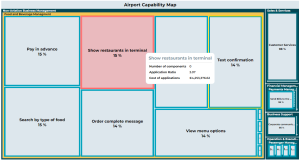
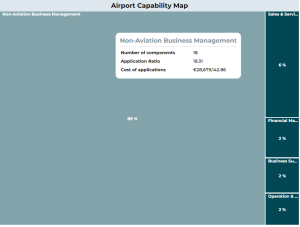
3. To display the values of an object, hover the mouse over the corresponding box.
E.g.: on a business capability.
The box color changes.
The criteria values of the object (e.g.: the capability) are displayed:
• the total number of components included in the object.
E.g.: 18
• its value for each available criterion.
E.g.: the ratio (19.31) and the cost (€28,679,142.86) of applications it includes.
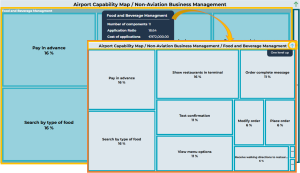
4. To zoom in on an item, click the item (box).
The treemap breadcrumb trail indicates you are one level lower down.
The selected item widens over the whole space of the treemap and displays its components.
You can drill down in the treemap levels, as long as the element includes items.
In the treemap top right corner, click One level up to go one level up. You can go up only one level at a time.