Handling a Bar Chart or Line Chart
Zooming in on a chart part
For improved readability, you can zoom in on a chart part.
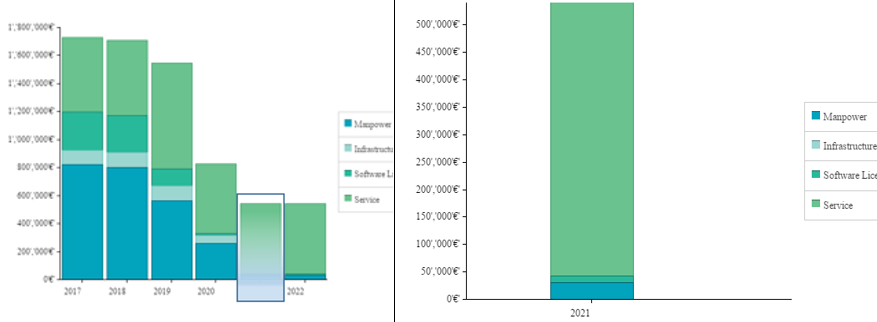
To zoom on one part of a chart:
1. Access the report concerned.
2. In the chart, with the mouse, click and draw a frame of the area you want to zoom in.
The selected part is automatically zoomed.
 To zoom out, click Reset zoom
  or double-click in the chart.
Modifying the chart content
You may, for example:
• reverse the display of the series
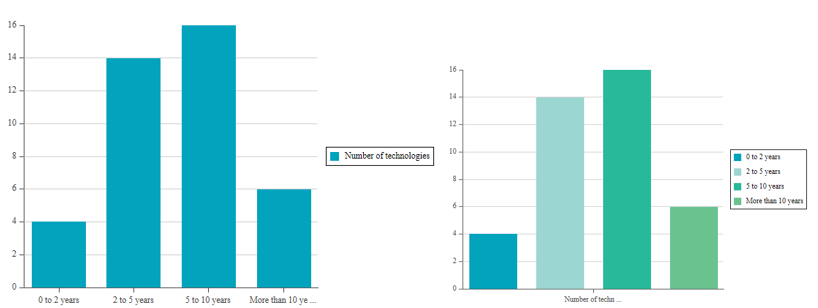
• show/hide the values (values or percentage) in the bars.
• add a title on the horizontal and/or vertical axis
Modifying the chart style
You may, for example:
• modify the color palette of the series
By default, if the series contains text in the chart, the text color is automatically adapted to the color of the series to be readable. If the text color is defined, it is applied regardless of the series color.• add a horizontal and/or vertical grid
• add a horizontal and/or vertical grid spacing
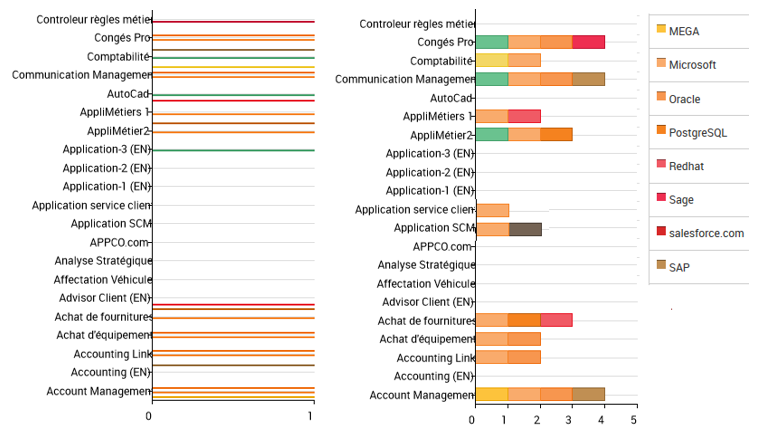
• stack the bars
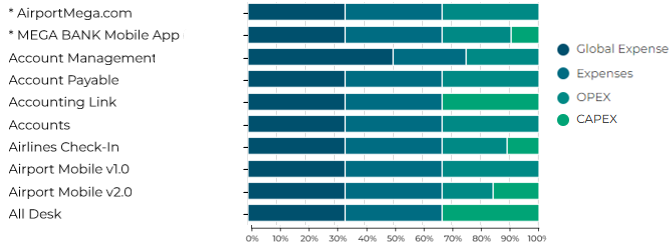
• stack the bars (percentage)
• reverse the bar direction (vertical or horizontal)
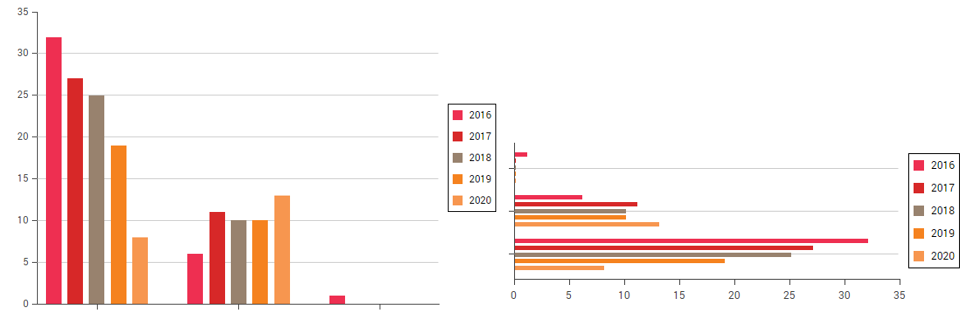
Modifying the label style
You may, for example:
• hide the axes
• define the maximum value of axes
• truncate the labels
• reverse the label order
• sort by value order (vertical axis)
• define a display angle for the horizontal label (in degrees)
Default value: 0°, the text is horizontal.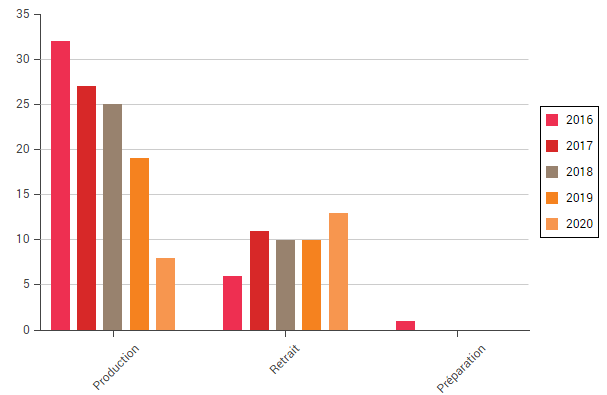
Modifying the legend style
You may, for example:
• hide/show the legend
Default value: yes (displayed)• modify the position of the legend (on the bottom or right)
Default value: to the right• hide/show the legend frame
Default value: yes (displayed)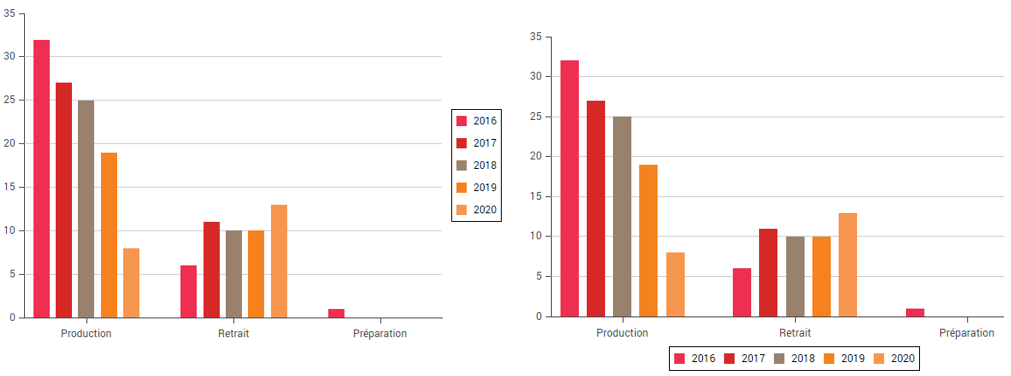
Modifying the parameter style of a series
You can:
• modify the display style (as bars or as lines)
Default value: no (as bars)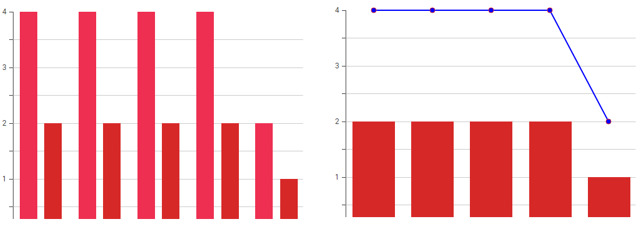
• modify the series color