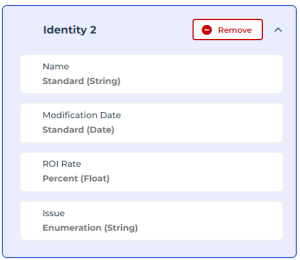
Creating an Attribute
Attribute types and formats
You can create attributes of the following types and formats:
|
Attribute type
|
Description
|
Format
|
|---|---|---|
|
String
|
Alphanumeric or numeric character string (if not used to compute data)
with a length between 0 and 1024
|
Standard
Enumeration: with creation of values
|
|
Boolean
|
Boolean
(true or false)
|
Standard
|
|
Short
|
Integer
between 0 and 65535
Integer between
-32767 and +32767
|
Standard
Percent
Signed Number
|
|
Long
|
Integer
between 0 and 4294967295
Integer between
-2147483647 and +2147483647
|
Standard
Percent
Signed Number
|
|
VarChar
|
ASCII text
for long texts (e.g.: a description)
|
Standard
(HTML or UTF8)
|
|
Float
|
Decimal number or percentage
|
Standard
Percent
|
|
DateTime64
|
Date
|
Standard
“YYYY-MM-DD"
Date with Time
“YYYY/MM/DD HH:MM:SS"
Duration
"HH:MM:SS"
|
To create an attribute:
1. In the property page customization window, click Create an attribute.
2. Enter the Name of the attribute.
An attribute name is unique. If an attribute with this name already exists, you must enter another one.
 The name of the attribute must be entered in the user interface language. If your data is in a different language, a flag reminds you of the language used when entering the name.
3. Enter the Description of the attribute.
 This description facilitates the understanding and use of the attribute.
If needed, you can modify or enter it after its parameterization.
4. Select:
• its Type
• its Format
5. Click Create.
The attribute is created and added to the section.
If needed, you can modify it later.Creating an enumeration type attribute
For an enumeration type attribute, you must define the attribute values. You can also define the default value.
To create an enumeration type attribute:
1. In the property page customization window, click Create an attribute.
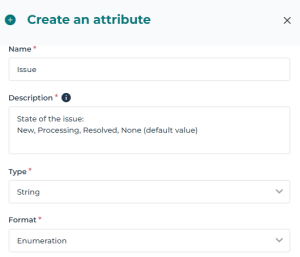
2. Enter the Name of the attribute.
An attribute name is unique. If an attribute with this name already exists, you must enter another one.
E.g.: Issue
3. Enter the Description of the attribute.
You can for example details its values.E.g.:
State of the issue:
New, Processing, Resolved, None (default value)
4. Select:
• its Type: “String”
• its Format: "Enumeration"
5. Define its values: for each value, click Add and in each field enter:
• the Value displayed in the interface
The name of the value must be entered in the user interface language. If your data is in a different language, a flag reminds you of the language used when entering the name.• the associated Internal value
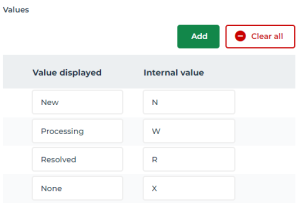
6. (If needed) To remove:
• a value, hover the cursor over the attribute row and click Remove  .
.
.• all of the values, click Clear all  .
.
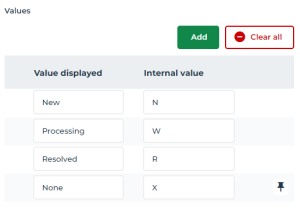
.7. (Optional) Define a default value: hover the cursor over the row of the value concerned and click Set as default value  .
.
.
The value is indicated as default value.
8. Click Create.
The attribute is created and added to the section.
If needed, you can modify the attribute later.