Creating Assessment Campaigns
You can create an assessment campaign:
• From a template
The creation of a campaign from a template enables to reuse the same template on all assessment sessions.
• without a template
In the case of creation of a campaign without using a template, a template can be specified at the time of creation of each session. See Assessment session creation mode.
To create a control or risk assessment campaign from a template:
1. In the navigation bar, click Assessment > Campaigns.
 Access to assessment campaigns may vary depending on the solution used.
2. Click New.
The campaign creation page appears.
3. Enter the name of the campaign.
4. Select the Assessment Template.
5. Modify the Calendar if required.
The calendar serves to initialize the begin and end dates of the evaluation campaign. 6. Specify the Begin Date and the End Date.
7. Click Next.
8. In the Scope Selection window, select the objects that define the evaluation context.
The tree allows you to select controls or risks assessed in their context.
A control or risk is assessed in the context of the elements of the branch that extends from the object in question up to the root.
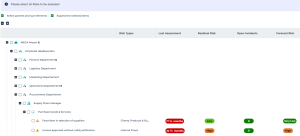 If you deselect a node of a branch, only the child elements of this branch are deselected.
9. Click Next.
A summary page enables to view:
• assessed characteristics (defined in the assessment template)
• assessed objects (risks or controls)
• context objects (entities, processes, etc.)
• assessment nodes, which correspond to objects placed in their context objects, associated with respondents.
• respondents
10. Click OK.
Next step: Creating an Assessment Session Manually.