Creating a distribution list
In the report MS Word properties, the Distribution page enables to:
• define the persons or org-units of the enterprise
• indicate the role of these persons/org-units:
 A person holds a position in an organization. It is designated by its name. Example: Mr. Smith.An org-unit is an element of the enterprise structure such as a department, a service, or a workstation. An internal organization unit is defined based on how detailed you require your view of the enterprise to be. Example: financial management, sales management, marketing department, account manager. An external org-unit is an external entity that exchanges flows with the enterprise. Example: customer, supplier, government office.
• The writer is responsible for originating the report MS Word.
• The checker is responsible for reviewing the report MS Word to check accuracy.
• The approver decides on validity of the report MS Word, for example that it may be implemented if it is a process.
 A person may have several roles:
 • “writer/approver"
• "approver/checker" or
• “writer/checker"
To create the distribution list of a report MS Word:
1. In the report MS Word properties, display the Distribution page.
2. Click Connect  .
.
. Your distribution list can include org-units or persons.
3. Select the recipient type you want to add in your distribution list:
• “Org-unit”
• “Person (System)"
4. In the list that appears, select the recipient.
To select more than one recipient, use the [Ctrl] key.5. Add other persons or org-units to the distribution list in the same way.
6. (According to your profile) Click in the Recipient Role field and use the drop-down list to select the role that each recipient plays.
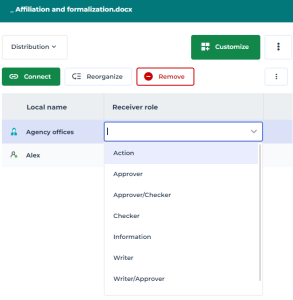 To remove persons and/or org-units from the distribution list, select these in the list and click Remove.