Adding Space between Elements
In a diagram, you can move a set of elements with respect to:
• a vertical line
• a horizontal line
Moving a set of elements horizontally
You can move a set of elements with respect to a vertical line:
• All the elements positioned entirely on the right of the line are moved to the right.
• All the elements positioned entirely on the left of the line are moved to the left.
If you move the set of elements beyond the right page, a page is automatically added to the right.
To move a set of elements horizontally:
1. Display the diagram in edit mode.
 See Editing Diagrams.
2. In the diagram editing bar, click  Add/Remove space.
Add/Remove space.Two lines appear under your cursor.
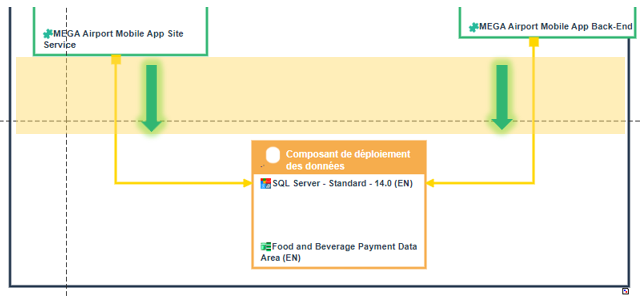
3. Position the cursor so that all of the objects you want to move are positioned on the right side of the vertical line, i.e. in the direction you want to move them.
Example: the objects to be moved are positioned on the right of the vertical line.
4. Click.
The lines disappear.
5. Hold your click down and drag the cursor to the right (or the left), towards the location you want to move the objects to.
The vertical line reappears and moves as you drag the mouse.
E.g.: move the line to the right.
Each object ghost is displayed as you move the line. Only the objects entirely positioned on the moving side are moved.
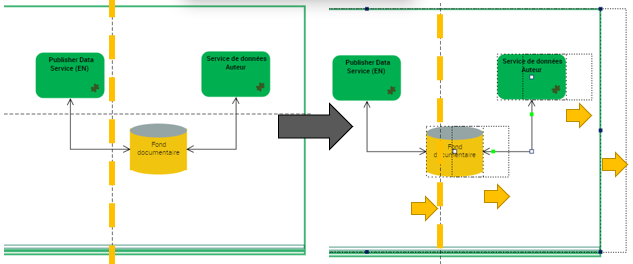
6. Let your click off once the desired position is reached.
The objects are moved. Their container is enlarged, if needed, so that all of the objects remain contained.
Moving a set of elements vertically
You can move a set of elements with respect to an horizontal line:
• All the elements positioned entirely above the line are moved to the top.
• All the elements positioned entirely below the line are moved to the bottom.
If you move the set of elements beyond the bottom page, a page is automatically added to the bottom.
To move a set of elements vertically:
1. Display the diagram in edit mode.
See Editing Diagrams.2. In the diagram editing bar, click Add/Remove space.
Add/Remove space.Two lines appear beneath your cursor.
3. Position the cursor so that all of the objects you want to move are positioned on the right side of the horizontal line, i.e. in the direction you want to move them.
Example: the objects to be moved are positioned bellow the horizontal line.
4. Click.
The lines disappear.
5. Hold down your click and drag the cursor up (or down) towards the place you want to move the objects.
The horizontal line reappears and moves as you drag the mouse.
E.g.: move the line to the bottom.
Each object ghost is displayed as you move the line. Only the objects entirely positioned on the moving side are moved.
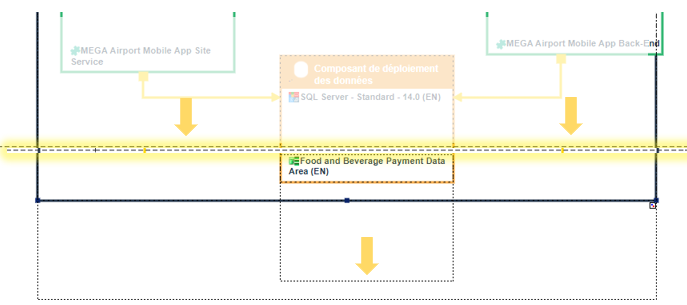
6. Let your click off once the desired position is reached.
The objects are moved. Their container is enlarged, if needed, so that all the objects remain contained.