Removing and Deleting an Object from a Diagram
A HOPEX repository object is not only graphical. It exists in the repository and can be present in any, a single, or several diagrams.
The deleted objects are removed from the repository and consequently from all diagrams using them.
 To view diagrams containing a particular object: right-click the object and select Diagrams Containing Object.
 Deleting an object from the diagram and from the repository
To delete an object from the diagram and from the repository:
1. Select the object you want to delete.
2. Press [del] on your keyboard.
Alternative: right-click the object and select Remove.The Deleting of <object name> window appears.
It shows the object you want to delete, along with its dependent objects – if applicable.
Example: the operations of an organizational process.
By default all of the objects in the list are selected to be deleted.
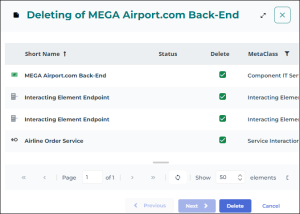
3. (If needed) In the Delete column, clear the objects you want to keep.
4. Click Delete.
Selected objects are deleted from both the diagram and the repository.
If you deleted an object by mistake, you can restore it using the Undo  feature.
feature. Warning: if you select a link between two objects, pressing the <Del> key deletes the link from the repository (and not only from the diagram).You can not delete an object whose status is Protected. An object becomes protected as soon as it gets published in the repository (via a workspace or current diagram backup).
Removing an object from a diagram
To remove an object from a diagram:
Right-click the object and select Cut.
The object no longer appears in the diagram, but still exists in the repository.
Updating diagram objects
When a diagram is created, the components of the described object are automatically inserted into the diagram. By default, if new components are added to the described object, they are not automatically taken into account in the diagram.
For all components connected to an object to be automatically added to one of the diagrams that describe the object:
1. Access the diagram describing the object in edit mode.
See Editing Diagrams.2. In the diagram toolbar, click More  .
.
.3. Select Diagram properties  .
.
.4. In the Characteristics page, select Diagram with Automatic Loading.
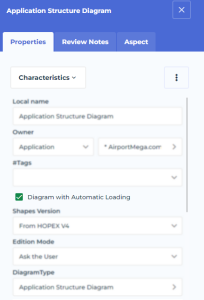
When you open the diagram again, all the components of the object described appear in the diagram.