Modifying a line style
In a diagram, you can modify the style of each line.
You can also modify the style of several lines at once.
For each line, you can modify:
• its style:
• free or orthogonal
• closed: enables to draw an irregular polygon, which can be filled with a color or a pattern.
• perspective: enables to adjust the right angle in diagram with object in perspective.
• its appearance:
• curved or straight
• rounded or right angles
• simple or double
• weight
• dashed or solid
• its color
• its extremities:
• line ends covered or not by connected elements
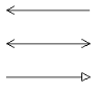
• with or without shapes
• (with shape) each shape color
To modify a line:
1. Select the line.
 To modify several lines at once, use the [Ctrl] key to select the lines.
2. Open the Aspect  page.
page.
page.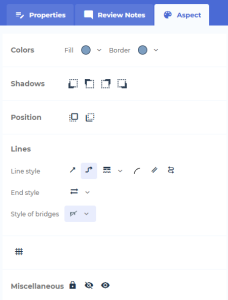
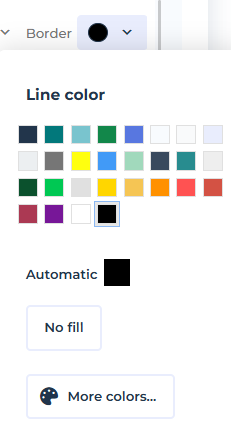
3. In the Colors section, use the Border drop-down list to modify the color of the line:
4. (If needed) In the Shadows and Position sections, you can:
• add shadow
• send the line to the back
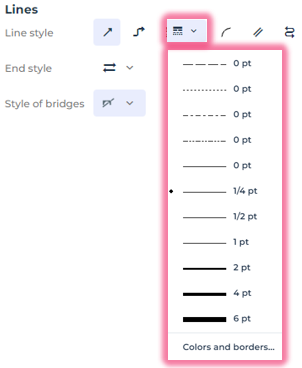
5. In the Lines section, use the drop-down lists to modify the line:
• its Style and Thickness
• its Extremities
(If needed) Select:
• Curved line
• Double line
• Rounded Angle
Examples of lines
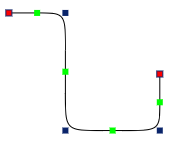
• Orthogonal line, rounded angles
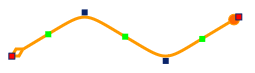
• Perspective line, rounded angles, start style: empty diamond, end style: circle filled with orange