Modifying a Shape Border
By default the shape border is black, thickness 0.25 pt, solid line style.
You can make the border invisible or modify its rendering:
• its color
• its style (solid or dash line)
• its thickness
To modify the shape border:
1. In the diagram, select the shape of interest.
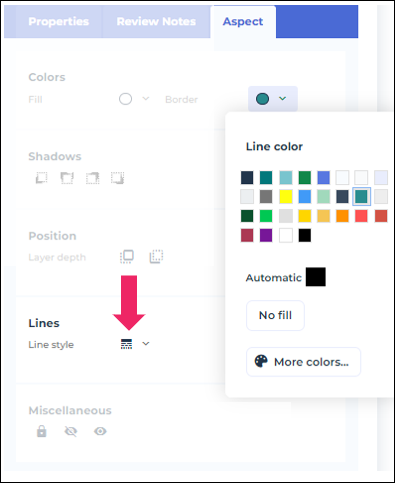
2. Open the Aspect  page.
page.
page.
3. In the Colors > Border section, click the arrow.
 Alternative: right-click the shape and select Colors and Borders.
4. Select a color.
Default color: black.
5. (If needed) Click More colors to adjust the color with the range sliders to the right, or with the hexadecimal, RGB (Red, Green, Blue) or HSV (Hue, Saturation, Lightness) values.
To make the border invisible, select “No fill”.
6. (If needed) In the Aspect page, in the Lines > Line style section, click the arrow and select another style. You can also manage the line thickness.
page, in the Lines > Line style section, click the arrow and select another style. You can also manage the line thickness.Default style: solid line.