Creating an application system structure diagram
This diagram describes the internal structure of an application system:
• services offered or required,
• the application components and their interactions; these are application systems service, applications and microservices,
• the end users interacting with the application components.
The following diagram describes the application system corresponding to purchasing requests processing.
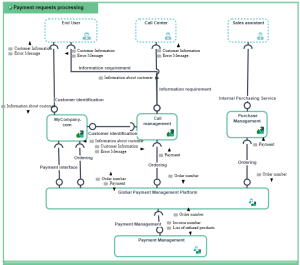
The following diagram describes the application system corresponding to purchasing requests processing.
To create an application system structure diagram:
1. Open the Diagrams page of the application system of your choice and click Create a diagram.
2. Select Structured diagram > Internal Architecture.
The application system structure diagram appears.
Adding an application system to an application system structure diagram
To describe an application system that implements another application system, you can add an application system of the application system structure diagram.
For example, the purchasing requests processing system uses the "Purchasing Management Platform" and "Payment Management" application system services.
To add an Application System:
1. In the objects toolbar of the application system structure diagram, click  Application System.
Application System.2. Click in the frame of the described application system.
An addition window box prompts you to choose the application system implemented (for example "Payment management").
3. Select an application system.
4. Click OK.
The application system appears in the diagram.
Adding an end user to an application system structure diagram
To specify that an application system, such as purchasing request processing, is activated by internal or external org-units, you will add an associated end user.
 The end user represents an organizational unit interacting at the boundaries of an application system or a logical application system.
To add an end user:
1. In the application system structure diagram objects toolbar, click  End User and click in the frame of the diagram.
End User and click in the frame of the diagram.An addition window prompts you to choose the Object Type that you wish to use: Org-Unit or Position type.
2. For example, select the Org-unit object type.
An org-unit represents a person or a group of persons that intervenes in the enterprise business processes or information system. An org-unit can be internal or external to the enterprise. An internal org-unit is an organizational element of enterprise structure such as a management, department, or job function. It is defined at a level depending on the degree of detail to be provided on the organization (see org-unit type). Example: financial management, sales management, marketing department, account manager. An external org-unit is an external entity that exchanges flows with the enterprise. Example: customer, supplier, government office.A position type represents a status assigned to an individual or a group of individuals with the aim of defining an organization or a hierarchy.3. Select the org-unit that interests you and click OK.
The actor appears in the diagram.