Participations
You can indicate which actor participates in each of the different use cases.
 A participation indicates that an actor plays a role in a use case.
Examples of participation
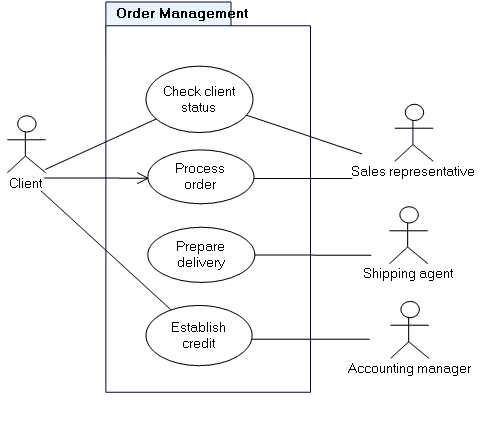
• The sales representative participates in order processing and in checking client status;
• The shipping agent participates in delivery;
• The accounting manager participates in setting up loans, etc.
Creating participations
To create a participation in a use case diagram:
1. In the insert tool bar, click the Participation button 
2. Click the actor concerned, and drag the mouse to the use case before releasing the button.
A dialog box appears:
3. Enter the name of the participation and indicate if the actor is the initiator.
 It is possible to specify the beginning of the use case by selecting the IsInitiator check box in the properties dialog box of the corresponding participation. An arrow appears on the line representing the participation.
 4. Click OK.
The link representing the participation appears in the diagram.
 A participation is represented by a link, but it is in fact an object with its own properties. The spool
  is not used to create participations. It is used to create certain types of links, such as those between packages and other objects. If you make a mistake, you can delete an object by right-clicking it and selecting the Delete command in its pop-up menu. You can also delete a link by right clicking on it and selecting Delete or Disconnect from the link pop-up menu.
 Multiplicities of a participation
Multiplicity can be specified on a participation:
• From the actor, to indicate that several instances of the actor participate in the same instance of the use case (example: participants in a meeting).
• From the use case, to indicate that the same instance of the actor participates in several instances of the use case (example: a sales representative processes several orders form the same customer).
To define multiplicities on a participation:
1. Select the activity concerned and display its Properties.
2. In the properties page that opens, click the drop-down list and select Characteristics.
A first section allows you to define multiplicity of the actor, a second frame that of the use case.
Having been defined, the multiplicities appear in the diagram.