Creating a Process Category diagram
You can create a Process Category diagram using two different modes.
• Graphical mode: with this mode, you can easily display the objects already created and linked to your Process Category.
• Tabular mode: with this mode, you can easily add multiple new objects in your diagram.
 The user can choose the opening mode of a diagram if the option Choice of diagram opening mode is set to Ask the user through Main Menu > Settings > Options> Compatibility > Diagram.
Creating a Process category diagram in graphical mode
To create a Process Category diagram in graphical mode:
1. In the Process Category list, click the Create Diagram  button related to the selected Process Category.
button related to the selected Process Category.The diagram creation window opens.
2. Select Process Category Diagram > Create diagram in graphical mode.
An empty Process Category diagram appears in graphical mode.
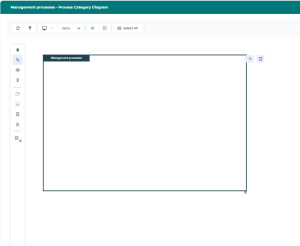
3. To complete the Process Category diagram, you can:
• Import existing objects
• Add new objects
To import existing objects:
 Click Add sub-categories
  then Reorganize.
To add / connect manually, click the following icons from the object inserting bar:
• Direct lower rank Process Category 
• Processes 
For further details, see Processes.• Value chain 
For further details, see Value Streams.• Application Used 
For further details, see Modeling the Systems Used.If you do not see certain objects, activate their display by using the Views and details icon. For further information related to adding objects in graphical mode, see Objects in a Diagram.
Creating a Process Category diagram in tabular mode
To create a Process Category diagram in tabular mode:
1. In the Process Category list, click the Create Diagram button related to the selected Process Category.
button related to the selected Process Category.The diagram creation window opens.
2. Select Process Category Diagram > Create diagram in tabular mode.
The diagram creation window in tabular mode opens.
3. To complete the Process Category diagram, you can:
• Add one or several objects with the New and Multiple Add buttons.
• Add an existing object via the Connect button.

When you create an object, it appears in the table (upper part of the screen) and in the diagram preview (bottom part of the screen).
For further information on diagram creation in tabular mode, see Diagrams in Tabular Entry Mode.