Selecting Audits To Be Executed
HOPEX Internal Audit provides the audit director with decisional help in selecting audits to be executed.
Viewing audit coverage
A report provides information on the number of audits executed on each entity, risk, process or control between two specified dates. It indicates the elements that need to be audited.
You can also create an audit from this report for the elements of interest.
To generate the audit coverage report:
1. In the navigation bar, click Audit > Preparation > Decisional Reports.
2. In the drop-down list, select Audit Coverage.
3. Select:
• a Begin Date
• an End Date
4. (Optional) Select an Object type, depending on the coverage targeted:
• Entities
• Processes
• Risks
• Controls
5. (Optional) Filter audits:
• By score
• By status
6. Click Refresh the report.
For each audited object (below, entities), the report presents:
• the Score of the last audit
• the number of Recommendations
• the name of the Last audit (with the possibility to access its properties)
• the effective End date of the audit or its status if the audit is in progress
• the Audit plan the audit is part of (with the possibility to access its properties)
 The audits that appear in the report are those which have been published.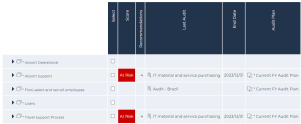
The objects covered are are those connected to the audit Scope.
For risks covered by an audit, you must define the risk type to which they belong in order for them to appear in the report (Risks are classified by risk type in this report). Risk types are defined by the GRC functional administrator in the environment.
You may also view:
• Impact
• Likelihood
For more information on risk impact and likelihood, see Defining and Assessing Risks Detected during the Audit.• Inherent Risk
See Inherent risk.• Risk Control Level
See Risk Control Level.• Residual Risk
See Residual Risk.• Control Level (%)
• Last Execution Result (Compliant/Not compliant)
To create an audit on the non-audited contexts:
1. Select the context objects for which you want to create an audit.
2. Click Generate audits.
3. Select a Target audit plan.
You may create one audit for all the selected objects.4. Click OK.
Consulting audit history
Consulting the history of audits can simplify your choice of audits to be executed. With HOPEX Internal Audit, you can:
• view past audits
• sort audits by score/assessment or find the audits that have not been executed.
Audit evaluation and status are defined in audit properties. For more details, see Defining Audit Properties.Finding past audits
To access audit complete history:
 In the navigation bar, click Audit > My Activities > My Past Audits.
Sorting audits by evaluation
In the list of audits of an audit plan, you can consult the evaluation of the audit that has been made by the lead auditor. You can sort audits based on this criterion, allowing you to create audits on appropriate entities, risks, process categories/processes.
To group audits by evaluation:
1. In the properties of an audit plan, select the Audits page.
2. In the list of audits of the audit plan, click the title of the Evaluation column.
Audits are then sorted by this criterion. An arrow associated with the column enables ascending or descending sort order.
Finding non-executed past audits
Audits can remain in "Potential", "Validated" or "Published" status without being executed, due to the fact that other audits are of a higher priority.
Audits published or in progress can also be canceled via the workflow.
Grouping audits by status enables identification of audits that must be recreated on a subject.
To find non-executed audits of a past audit plan:
1. In the properties of an audit plan, select Audits.
2. In the list of audits of the audit plan, click the title of the Status column.
Audits are then sorted by this criterion.
An arrow associated with the column enables ascending or descending sort order.
Viewing previous audit expenses
A report allows you to view expenses of previous audits.
To access this report:
1. Click Audit > Preparation > Decisional Reports > Expenses Report.
2. Click New then Next.
3. Select a Plan as well as the audit(s) of interest.
If you fail to select a value for audits, all audits are taken into account.Risk assurance matrix
You need to have an overview of the risks of your enterprise to better prioritize the risks to be audited during your next audit.
A matrix enables you to provide a more focused Risk Assurance report to your board. It enables to detect inconsistencies between risk assessments, control assessments and incident impacts.
To create a risk-assurance dashboard:
1. In the audit desktop, click Audit > Preparation> Decisional Reports > Risk Assurance Dashboard.
2. Click New.
3. In the dialog box that opens click Next then Connect to specify a list of risks.
4. Click OK.
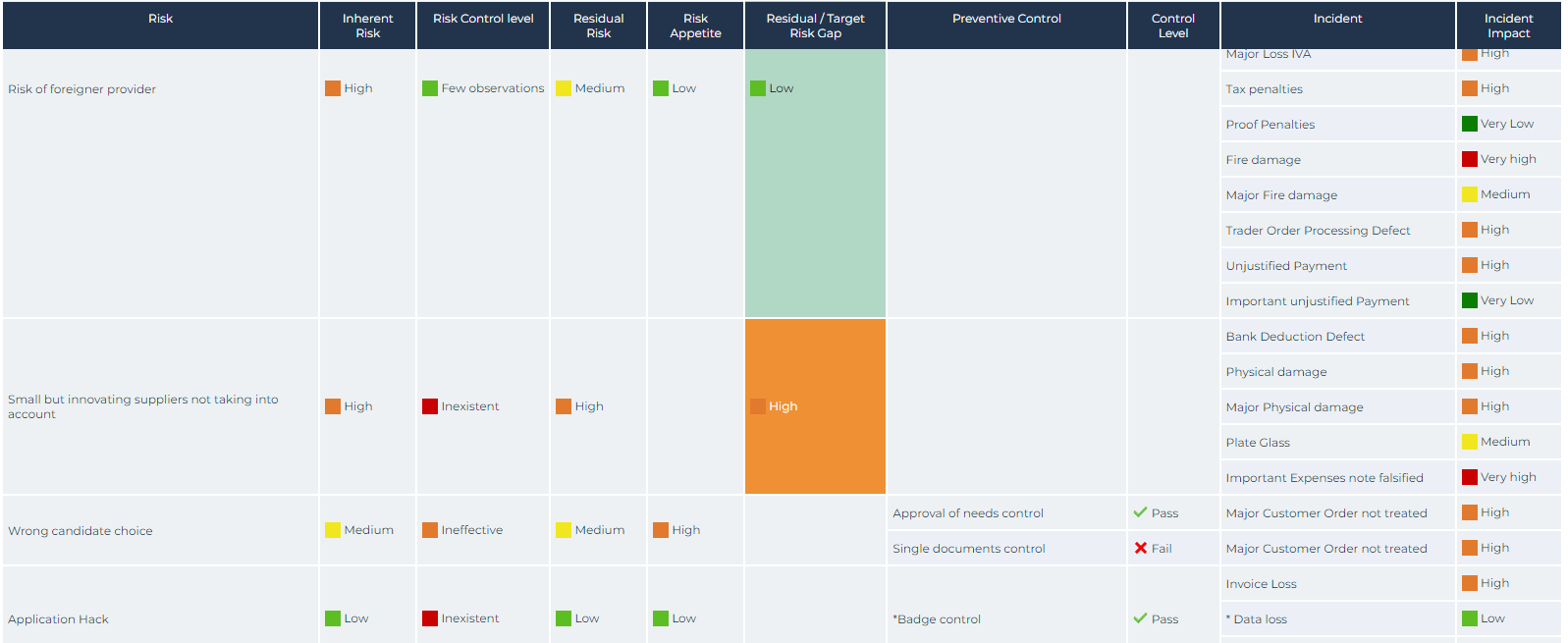
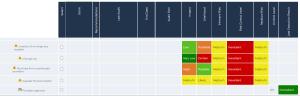
The columns displayed are as follows:
• Risk
• Inherent Risk: risk assessments return an aggregated inherent risk

• Control Level: represents the level of confidence in risk mitigation
• Residual risk
• Risk appetite
• Residual risk/ Risk appetite Gap: this gap allows the Audit Director to check the maturity of the second line of defense (support and transversal functions, for example, risk management and compliance)
Value for Residual risk / Risk appetite Gap | Interpretation possible |
|---|---|
Wide gap | The maturity level of the organization with respect to risk is low. |
A wide gap between certain risks and effective prevention controls | Contradiction between 1st and 2nd line of defense |
Narrow gap for certain risks + non-existent or ineffective preventive controls | Contradiction between 1st and 2nd line of defense |
• Preventive Control
• Control level
• Incident
• Incident Impact