Importing new Objects from BDNA
Objects you can import from BDNA are:
• Technology types
• Vendors
• Technologies
Data import is carried out by the functional administrator.
To import data with the BDNA Connector:
1. Connect to ITPM as a Functional Administrator.
2. In the desktop, click the navigation menu then Tools > BDNA.
3. The edit window displays the following tiles:
• BDNA technology types
• BDNA vendors
• BDNA technologies
Technology types
Importing technology types implies import of all technology types of the BDNA repository.
To import technology types:
1. Click the Tools > BDNA Technology Types navigation menu.
2. Click Import.
The list of technology types appears in the Technology Types folder.
Vendors
You can search vendors to be imported by name, specifying where applicable the Industry and Owner.
The import wizard displays the search results and prompts you to select the vendors to be imported from among the list displayed.
The Direct Creation option speeds up the import by eliminating this intermediate stage that lists and displays the vendors found; it creates the vendors found by the wizard directly, without prior validation.
To import a vendor:
1. Click the Tools > BDNA Vendors navigation menu.
2. In the edit area, click the Import button.
You can search a vendor by specifying:
• the name (or a part of the name) of the Vendor.
Under the Advanced options, you can specify:
• The Industry within which a vendor belongs, based on the majority of their products.
• The Owner of the vendor. For example, Microsoft is now the owner of Skype.
• The Tier: categorization of vendors based on priority/importance. For example level 1: well-known vendors.
 Direct Creation: check this option if you want to ignore the results display and directly create the technologies found.
3. Click Next.
The wizard displays the search results.
4. Select from the list the vendors you want to import.
5. (Optional) At this stage you can merge a vendor to be imported with a vendor of your repository. To do that, click the Matching Vendor in HOPEX column and select the vendor of your repository that corresponds to the vendor to be imported.
The existing vendor is maintained in the repository. In its properties you can see the ID as well as the BDNA Name of the vendor to which it corresponds. See also Merging technologies at BDNA import.6. Click Next.
7. Select the import option:
• Now
• As soon as possible: execute the import after saving updates
• Scheduled: execute the import at the date and time specified
8. Click Import.
The imported vendors are shown in the edit area.
Technologies
You can search software technologies to be imported by:
• their name
• the type of technology and the vendor.
The import wizard displays the search results and prompts you to select the technologies to be imported from among the list displayed.
The Direct Creation option speeds up the import by eliminating this intermediate stage that lists and displays the technologies found; it creates the technologies found by the wizard directly, without prior validation.
Note that when importing minor technologies, the tool also imports the major versions from which they are derived.
Searching by name
To find a technology using its name:
1. Click the Tools > BDNA Software Technologies navigation menu.
2. Click Import.
3. Select the Import Software technologies by name query mode and click Next.
4. Complete the following fields:
• Software Technology Name (enter the name or a part of the name)
• Technology Version
• Software Version Group (year)
Under the Advanced options, you can specify if it is:
• A minor or major version
• A technology suite
• A licensable technology
Direct Creation : check this option if you want to ignore the results display and directly create the found technologies.5. Click Next.
The wizard displays the search results.
6. Select from the list the technologies you want to import.
7. (Optional) At this stage you can merge a technology to be imported with a technology of your repository. To do that, click the Matching Software Technology in HOPEX column and select the technology of your repository that corresponds to the technology to be imported.
For more details, see Merging technologies at BDNA import.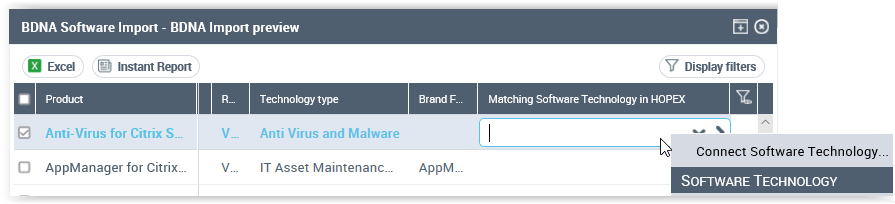
8. Click Next.
9. Select the import option:
• Now
• As soon as possible: execute the import after saving updates
• Scheduled: execute the import at the date and time specified
10. Click Import.
Searching by the type of technology and the vendor
To find a technology using its type and vendor:
1. Click the Tools > BDNA Software Technologies navigation menu.
2. Click Import.
3. Select the Import Software technologies by selecting technology types and vendors query mode and click Next.
4. Select the technology type.
5. Click Next.
6. Select the vendor.
7. Click Next.
8. If necessary, filter the technologies by name.
Direct Creation : check this option if you want to ignore the results display and directly create the found technologies.9. Click Next.
The wizard displays the search results.
10. Select from the list the technologies you want to import.
11. (Optional) At this stage you can merge a technology to be imported with a technology of your repository. To do that, click the Matching Software Technology in HOPEX column and select the technology of your repository that corresponds to the technology to be imported.
12. Click Next.
13. Select the import option:
• Now
• As soon as possible: execute the import after saving updates
• Scheduled: execute the import at the date and time specified
14. Click Import.
Filtering the display of technologies
You have the possibility to filter the display of technologies according to:
• Root technologies imported from BDNA: these are the technologies in their first functional version, for which new versions may exist.
• All technologies imported from BDNA
• Technologies not imported from BDNA
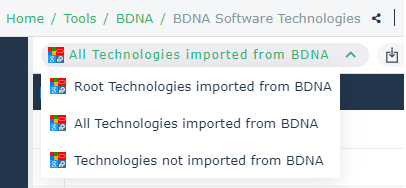
Note that additional commands appear when selecting technologies.
Click  to access hidden commands.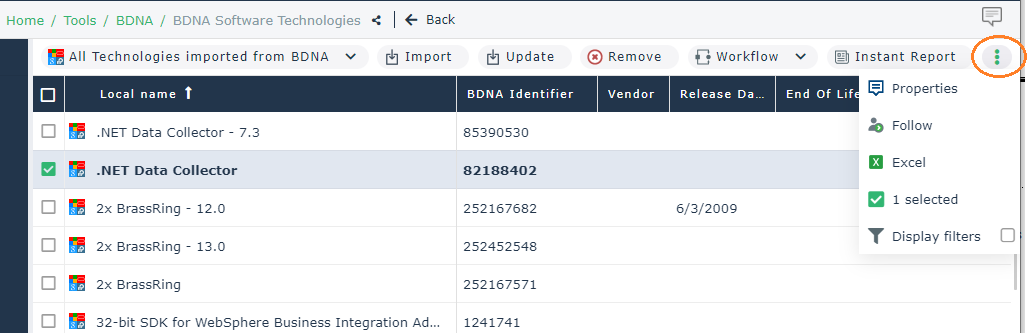
See also: