Website Configuration Prerequisites
API Key
An API key must be created. It will authorize the user to execute the website generation process.
To create an API key:
1. Connect to HOPEX Application Server - Console.
2. Select Modules > Authentication.
3. Select Api keys, then click Create.
• Enter a key Name.
4. Configure the Roles:
• Select Custom
• Leave the fields below blank
5. Configure Hopex session:
• Select Open session
• Enter a valid HOPEX login
 For better performance, use a different login to create the API key than the one you use to access the Enterprise Portal.
 • Select the EnvironmentId
• Select the Repository if applicable
• Select the profile HOPEX Customizer
6. Select Single Session Mode.
7. Select Read/write Connection Mode.
8. Click Submit.
9. Copy the key.
 Save the key somewhere: you will not be able to access it at a later stage.
  If you have lost the API key, you can simply create a new one. This will not impact website generation.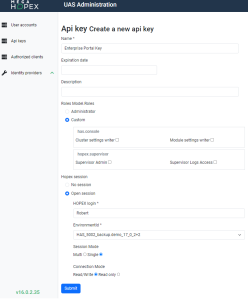
Website Absolute Identifier
The Website Absolute Identifier is a configuration requirement to determine which static website is displayed through the Enterprise Portal.
To retrieve the Website Absolute Identifier:
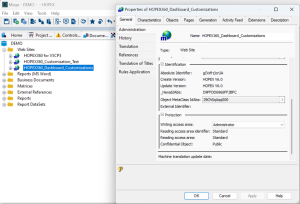
1. Open the Windows Front-End
2. In the Documentation tab, expand Web Sites.
If you cannot see the Documentation tab, click View > Navigation Windows and select Documentation. 3. Right click the adequate website to open its Properties.
4. In the General tab > Administration tab, copy the Absolute Identifier.
Save the Website Absolute Identifier somewhere: you will have to paste it in the Enterprise Portal configuration file.