Prerequisites for the use of automatic translation
For the commands linked to the automatic translation of data to be available, you must have acquired a Microsoft Translator Text API license.
 For further details about this license, see https://azure.microsoft.com/en-us/services/cognitive-services/translator-text-api/.
 To use this service, your IT architecture must allow the HOPEX servers to access the URL https://api.cognitive.microsoft.com/.
The API key of your Microsoft Translator Text API license must be declared and, if your API key is region-dependent, the region to which this key belongs must also be declared.
An option enables an administrator to enter the Authentication key number and its region, enabling activation of the automatic translation APIs.
To activate this option in HOPEX Administration Web Front-End:
1. You must log on as a HOPEX Administrator.
For further information about logging in to HOPEX Administration Web Front-End, see the "Web Administration Desktop" chapter in the HOPEX Administration - Supervisor guide.2. At the top of the workspace, click the Environment options button.
The Options window of the environment opens.
3. In the tree on the left, select Installation > Automatic translation.
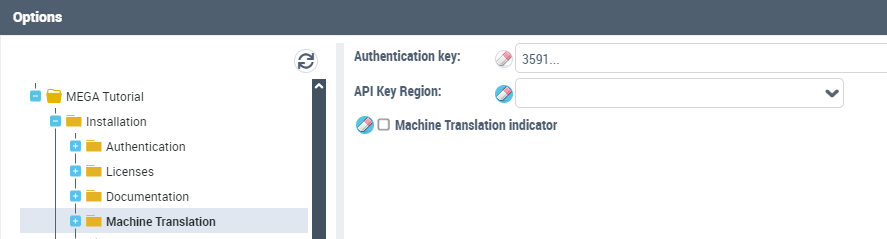
4. Enter the Authentication key number.
5. If your API key is region-dependent, select the API Key Region.
6. Check the Automatic translation indicator box if you want a note to appear at the end of each translated text to specify that the translation was done automatically.