Prerequisite
See:
Exporting a Business Hierarchy into SolMan
Once the mapping process preparation phase is completed, you can transfer the objects to Solution Manager. Thanks to the mapping done previously, the export tool will find the SAP solution and branches that correspond to the objects you want to export.
To export HOPEX objects into SolMan, you should use the "(Objects) for SAP" list, which contains only the objects already mapped. See for example List of Processes.
To export HOPEX objects into SoMan:
1. Click the navigation menu then Transformation.
2. In the Transformation navigation pane, click Solution Manager 7.2.
3. Select the object type you want to export.
 For example Business Processes.
4. Select the "(Objects) for SAP" list.
In the case of business processes, select the "Business Processes for SAP" list.5. In the list select the objects to export.
6. Click the Export to SolMan button.
7. Use the check box to export also diagram images (for more details see Defining the Documentation Type Associated with Exported HOPEX Object).
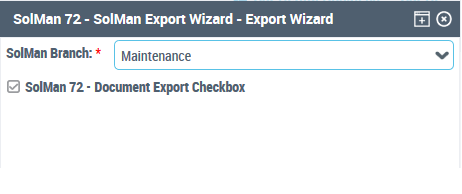
8. Click OK.
The selected objects and their sub-hierarchies are pushed to SolMan.
Exempting objects from SolMan
You may find that some of your business objects are not relevant in SAP, such as operations that are performed by other systems or manual processes.
By default, all objects retrieved by the extraction operator are mapped as candidates to be sent to SAP. You can, however, manually select some objects and declare them to be kept in HOPEX and not sent to SolMan. You can do this in each property page of the object by deselecting the IsSAP check box in the SolMan Mapping page:
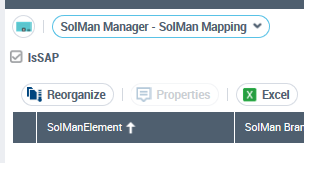
This must be performed before preparing objects for SAP, which will disable object generation and mapping.
Please note that in a future upgrade, deselecting those objects will be available in a dedicated page in the mapping wizard. You will then be able to select objects at generation time.View in Solution manager
In Solution Manager, you can view the transferred objects in the Business Process Hierarchy:
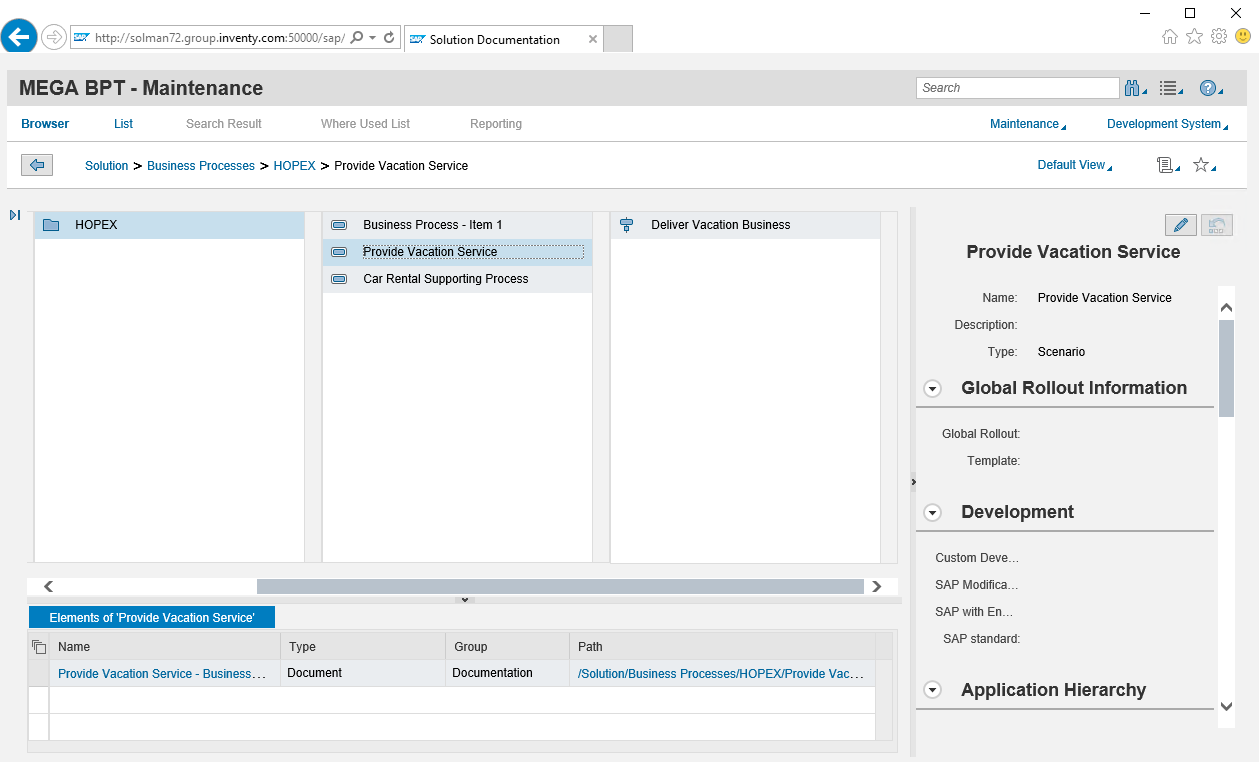
In the attachments (bottom part of the screen below), you can see a document related to the Business process which is the image of the diagram. Click on it in SolMan to open a browser tab with this diagram:
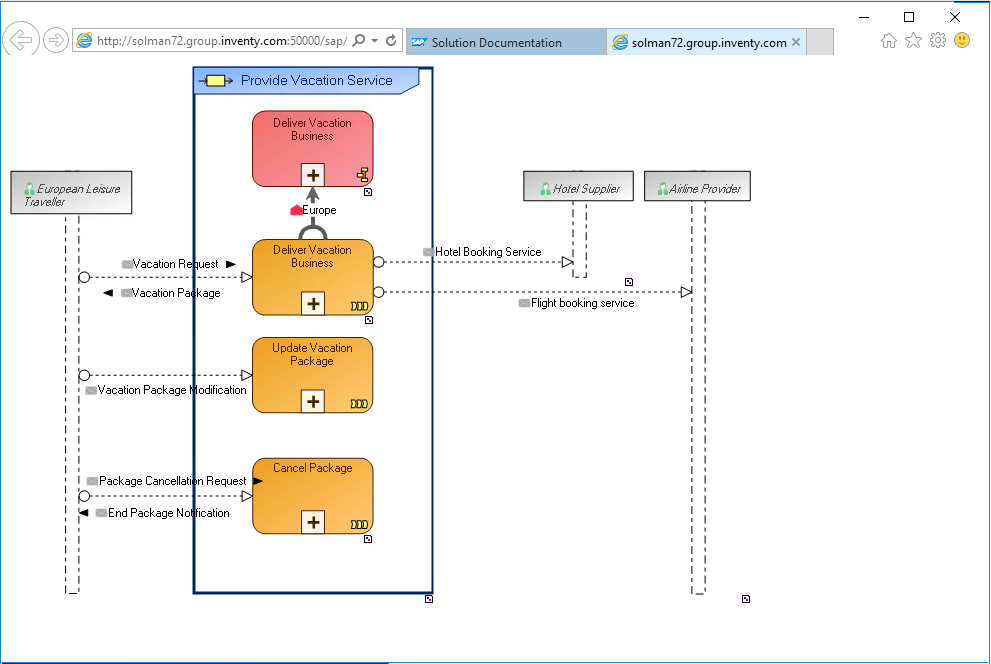
SolMan users can then attach transactions to the business objects.
Importing SolMan transactions
This option imports all transactions mapped to the business objects of a branch from SolMan.
Authenticate and choose the solution and the branch to be imported into HOPEX. Only objects that have been created by the HOPEX synchronization are imported and updated.