Customizing Report (MS Word) Sending
HOPEX enables sending of reports (MS Word) for review or validation. This function is accessible via the commands Send for Review and Send for Validation in the report (MS Word) properties dialog box.
Information concerning recipients is based on content of the Distribution tab of the report (MS Word) properties dialog box.
 Rules concerning the recipients list are described in the HOPEX Common Features guide, chapter "Generating documentation", paragraph "Distributing a report (MS Word) for review or validation".
To customize report (MS Word) sending:
1. Explore the Report (MS Word) MetaClass.
2. Right-click the Command and select Properties.
For example: "Send for Validation" command.
3. From the Setup tab, you can access macros.
The macro "MEGADocSendForValidation" calls code that executes standard code.
4. In the Macro field, click the right-oriented arrow and select Create to create a new macro.
For example: "MyDocSendForValidation".
In the option (Tools > Options > Repository), the Authorize MEGA data modification option value must be "Authorize".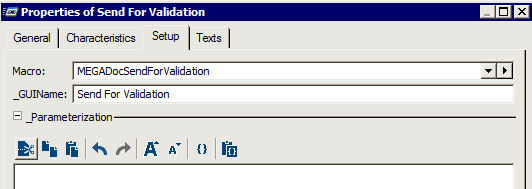
5. Open the Properties of this new macro.
6. Update the script in the VB Script tab of the macro properties and click OK.
For more information on these functions, see the All about Starting with APIs technical article.To call a VB script of this type, you must use a .dll (cdo.dll) and deploy it on all workstations. The user must have adequate administration rights for a script to be executed automatically on his or her workstation.