Adding Text to a Descriptor
Text is the basic element used to define what is displayed for each of the objects in a generated report (MS Word).
Example: you can add text to the “Org-Unit” object to edit its name and comment.
To add text to a descriptor:
1. Access the descriptor structure.
2. Right-click the folder representing the described object (Example: Org-Unit) and select New > Text.
Example: Org-Unit.
Text  is added in the Texts Tree tab.
is added in the Texts Tree tab. The icon indicates which text is currently being edited.
The following panes appear in the descriptor editing window:
• an MS Word pane (top right pane) to edit the text.
• a Data Tree tab (bottom pane), which enables you to select a field and drag and drop it for edition in MS Word pane.
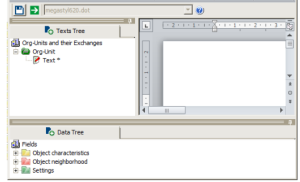
3. In the Data Tree tab select the field you want to insert in the text.
4. Drag and drop the field in the top-right pane.
Example: to insert the Name and Comment fields in the text area, in the Object characteristics folder, successively select the Name and Comment fields and drag-and-drop them into the desired location in the text area.
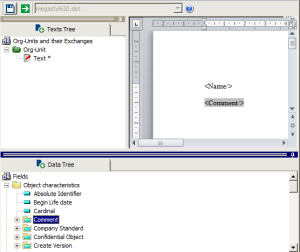
5. (Optional) Customize your document format by applying Word styles.
These styles have the prefix M- and are based on the M-Normal style that is similar to the Word Normal style. Note that the M-Normal style text is in blue.Fields from Object characteristics folder cannot be manually edited. You must insert these in the text by drag-and-drop as explained above, or by copy/paste.6. Click Save.
7. In the Texts Tree tab, right-click Text and select Close.
The text is automatically saved and the icon returns to its original form.